> ## Documentation Index
> Fetch the complete documentation index at: https://docs-staging-quickstart-revamp.mintlify.site/llms.txt
> Use this file to discover all available pages before exploring further.
> Common issues and troubleshooting information for the AD/LDAP Connector.
# Troubleshoot AD/LDAP Connector
If you are experiencing issues with your [AD/LDAP Connector](/docs/authenticate/identity-providers/enterprise-identity-providers/active-directory-ldap/ad-ldap-connector), read below to learn how to troubleshoot common issues.
## Run the troubleshooting tool
You can run the troubleshooting tool in the AD/LDAP Connector Admin Console, or outside the Admin Console by executing the program manually.
To detect issues with certificates, set the `CONNECTIONS_API_V2_KEY` variable in the [AD/LDAP Connector configuration file](/docs/authenticate/identity-providers/enterprise-identity-providers/active-directory-ldap/ad-ldap-connector/ad-ldap-connector-config-file-schema).
### In the Admin Console
You can run the troubleshooting tool in the Admin Console.
1. Switch to the **Troubleshooting** view to read the logs.
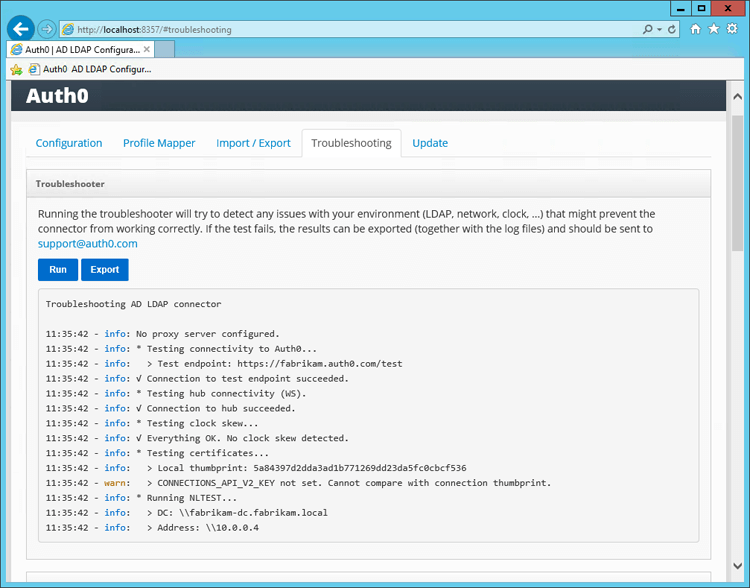 2. Select **Run** to detect the most common problems related to the AD/LDAP Connector.
### Outside the Admin Console
You can launch the troubleshooting tool outside of the Admin Console.
#### Windows
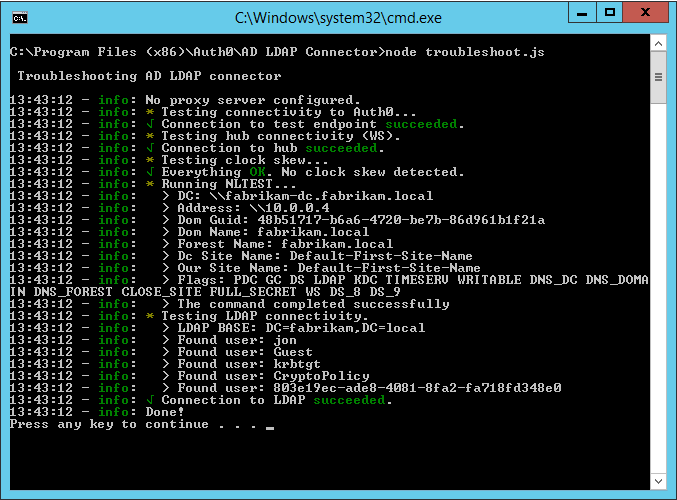
On a Windows machine, run the provided command file to launch the troubleshooting tool.
1. Locate the AD/LDAP Connector folder (`AD LDAP Connector`).
2. Run the `troubleshoot.cmd` file.
For example: `C:\Program Files (x86)\Auth0\AD LDAP Connector\troubleshoot.cmd`.
2. Select **Run** to detect the most common problems related to the AD/LDAP Connector.
### Outside the Admin Console
You can launch the troubleshooting tool outside of the Admin Console.
#### Windows
On a Windows machine, run the provided command file to launch the troubleshooting tool.
1. Locate the AD/LDAP Connector folder (`AD LDAP Connector`).
2. Run the `troubleshoot.cmd` file.
For example: `C:\Program Files (x86)\Auth0\AD LDAP Connector\troubleshoot.cmd`.
 #### Linux
On a Linux machine, run the provided Node.js program to launch the troubleshooting tool.
1. Open a new terminal window.
2. Change the working directory to the AD/LDAP Connector folder (`AD LDAP Connector`).
3. Run the `node troubleshoot.js` command.
## Installation and configuration issues
After clicking **Save**, the AD/LDAP Connector Admin Console performs a series of tests to validate the provided information. The results of the tests are displayed under the **Configuration log** heading.
The Admin Console performs the following tests:
* **Test 1**: Attempts to establish a TCP connection to the LDAP server and port specified. If Test 1 fails, check basic network connectivity and firewall settings that might prevent such a connection.
* **Test 2**: Attempts to perform an LDAP bind on the LDAP server and port specified and with the username and password provided. If Test 2 fails, check the LDAP connection string, search path, username, and password.
* **Test 3**: Attempts to perform an LDAP search against the directory to check the privileges of the specified username. If Test 3 fails, check the privileges of the username in the target directory.
* **Test 4**: Attempts to establish a connection to the Auth0 server. If Test 4 fails, check network connectivity and firewall settings that might prevent such a connection.
## Common issues and solutions
Descriptions of several common issues and their solutions are listed below.
### Authentication requests take too long to process
By default, the Auth0 AD/LDAP Connector imports a user’s group memberships from Active Directory and includes them on the `user` object.
This behavior requires the AD/LDAP Connector to perform additional queries against Active Directory, which can significantly increase the duration of the authentication process.
If you do not need groups to be returned on the user profile, Auth0 recommends that you explicitly disable the `GROUPS` variable in the [AD/LDAP Connector configuration file](/docs/authenticate/identity-providers/enterprise-identity-providers/active-directory-ldap/ad-ldap-connector/ad-ldap-connector-config-file-schema).
### Host CPU utilization is high
If the CPU utilization on the machine hosting the AD/LDAP Connector is consistently high (for example, sustained utilization above 60%), there are several mitigation strategies.
#### Uninstall non-critical services
Uninstall any non-critical services on the host machine that may be consuming CPU cycles.
#### Modify group import configuration
If you do not require groups to be returned on the user profile, disable group import as described in [Authentication requests take too long to process](#authentication-requests-take-too-long-to-process).
If you do require groups to be returned on the user profile, investigate the groups being returned on the Auth0 user profiles. Queries against nested and recursive groups can cause high CPU utilization. If possible, test with group import disabled to assess the impact of the group queries.
To mitigate the impact, fix any recursive or otherwise problematic group assignments in your AD/LDAP server, and/or increase the value of the `GROUPS_CACHE_SECONDS` variable in the [AD/LDAP Connector configuration file](/docs/authenticate/identity-providers/enterprise-identity-providers/active-directory-ldap/ad-ldap-connector/ad-ldap-connector-config-file-schema).
#### Evaluate volume of active users
Check if the number of active users using the AD/LDAP Connector has increased since you initially deployed it. You can evaluate this by using your own [monitoring solution](/docs/customize/log-streams), or you can get an estimate from the [Auth0 active users report](/docs/troubleshoot/customer-support/manage-subscriptions/monitor-subscription-usage).
In Microsoft Windows Server environments, Microsoft System Center Operations Manager (SCOM) can be configured to monitor and alert on the service status of the AD/LDAP Connector. For more information, see [Monitor AD/LDAP Connector with System Center Operations Manager](/docs/authenticate/identity-providers/enterprise-identity-providers/active-directory-ldap/ad-ldap-connector/ad-ldap-connector-scom).
If the number of active users has increased, and all steps above have already been followed, you may need to upgrade your host machine’s hardware specifications, or configure a [High Availability environment](/docs/authenticate/identity-providers/enterprise-identity-providers/active-directory-ldap/ad-ldap-connector/ad-ldap-high-availability).
### Clock skew
The connector requires the clock on the server to be synchronized with the Auth0 service. The maximum allowed threshold is 5 seconds.
If you have a clock skew, you'll see output like this in the troubleshooter and connector logs:
```text lines
12:18:55 - info: * Testing clock skew...
12:18:55 - error: × Clock skew detected:
12:18:55 - error: > Local time: 2020-05-04 12:18:55
12:18:55 - error: > Auth0 time: 2020-05-04 12:19:10
```
Make sure the clock of your server is current. If the time is not correct, it will cause authentication requests to fail. This can be fixed by ensuring the system is properly configured to poll a sync server via the Network Time Protocol (NTP). In Windows environments, the NTP provider is usually the same domain controller. Make sure that your domain controller is synchronized with some external service.
To learn how to synchronize your Active Directory environment with an external time server, read [How to configure NTP server in Active Directory, Step by step on renanrodrigues.com](https://www.renanrodrigues.com/post/how-to-configure-ntp-server-in-active-directory-step-by-step).
If you are unsure if your server's clock is in sync with NTP, go to [https://nist.time.gov](https://nist.time.gov) and compare the time on that page with the time in the server where the connector is running. You shouldn't notice more than a one (1) second difference between them.
### No connection to Active Directory
The AD/LDAP Connector must be installed on a server that can reach your LDAP server. When firewalls and VPN connections are placed between the AD/LDAP Connector and the LDAP server, you may experience connectivity issues.
If you’re configuring a Windows Network with Active Directory, use the `nltest` command. For example, to test if a specific machine can reach the `fabrikam.local` domain, use `nltest /dsgetdc:fabrikam.local`.
To see to which domain the current server is connected to, use `nltest /dsgetdc:`.
If a domain does not exist or cannot be reached, `nltest` will return an error message: `Getting DC name failed: Status = 1355 0x54b ERROR_NO_SUCH_DOMAIN`.
### UNABLE\_TO\_VERIFY\_LEAF\_SIGNATURE error message (Private Cloud)
This error applies to the AD/LDAP Connector in combination with Private Cloud.
This error message occurs when the AD/LDAP Connector fails to start when it can't validate the SSL certificate configured in the Private Cloud. This can happen when the Root Certificate (or any Intermediate Certificates) are missing in the machine's Certificate Store (Windows). In order to solve this, import the certificate chain in the **Local Machine > Trusted Root** certificate store on the machine where the AD/LDAP Connector is installed.
### Connector behind a proxy
If the machine hosting the connector is behind a proxy, you can set an `HTTP_PROXY` system environment variable, or you can set the `HTTP_PROXY` variable in the [AD/LDAP Connector configuration file](/docs/authenticate/identity-providers/enterprise-identity-providers/active-directory-ldap/ad-ldap-connector/ad-ldap-connector-config-file-schema). If using an authenticated proxy, the URL must be in the format `http://USERNAME:PASSWORD@SERVER_URL:PORT`.
If you set system environment variables, or modify the [AD/LDAP Connector configuration file](/docs/authenticate/identity-providers/enterprise-identity-providers/active-directory-ldap/ad-ldap-connector/ad-ldap-connector-config-file-schema), you must restart the AD/LDAP Connector for the changes to take effect.
The `HTTP_PROXY` URL must be the URL of the proxy itself and cannot point to a `.pac` (auto-config) file. If your proxy is configured through a `.pac` file, download the `.pac` file and find the proxy URL there.
An incorrectly configured proxy can result in several errors, such as `Auth0 servers not reachable` and `SELF_SIGNED_CERT_IN_CHAIN` errors.
If you have configured a proxy URL and restarted the AD/LDAP Connector, but are still seeing `SELF_SIGNED_CERT_IN_CHAIN` errors, make sure that your server is trusting the root certificate of the proxy. On a Windows machine, you can check this by opening `certmgr.msc` and looking for your proxy's certificate. To learn more, read [Proxy auto config (PAC) on Wikipedia](https://en.wikipedia.org/wiki/Proxy_auto-config).
### No internet connectivity
Ensure that your server can connect to your Auth0 tenant (`https://{yourDomain}`).
To verify this, open a browser and navigate to `https://{yourDomain}/test`.
### Service account permissions
The Service account used to configure the AD/LDAP Connector must have `read` permissions on the AD/LDAP server, and must be capable of querying groups for users.
### Kerberos issues
To enable verbose logging of Kerberos requests:
1. Add `DEBUG=kerberos-server` as a system environment variable.
2. Restart the AD/LDAP Connector.
3. Log in.
4. Check the logs for more information.
If you have Kerberos enabled, but your users are being prompted for username/password, verify that the IP address setting is properly configured. For more information, see [Configure AD/LDAP Connector Authentication with Kerberos](/docs/authenticate/identity-providers/enterprise-identity-providers/active-directory-ldap/ad-ldap-connector/configure-ad-ldap-connector-with-kerberos).
### Changes in user profile in AD are not immediately reflected in the app
The AD/LDAP Connector uses two levels of configurable caching:
1. **Auth0 server**: Caches both the user’s credentials and their profile.
2. **AD/LDAP Connector**: Caches a user’s group memberships.
The configuration of these settings determines the immediacy that changes in your directory may be reflected in a user’s profile when they log in to your application(s). In some AD/LDAP installations, user attributes synchronization may take a few minutes.
#### Caching on the Auth0 server
The Auth0 server caches the user’s last successfully authenticated profile, including a hash of their username and password. It is enabled by default, and can be disabled.
The purpose of this first-level cache is to maximize availability of authentication transactions when AD is unavailable, such as during a network outage. It is only activated if the AD/LDAP Connector or the AD/LDAP server(s) are unavailable.
#### Caching in the AD/LDAP Connector
The AD/LDAP Connector caches a user’s group memberships. This cache’s lifetime is determined by the `GROUPS_CACHE_SECONDS` variable in the [AD/LDAP Connector configuration file](/docs/authenticate/identity-providers/enterprise-identity-providers/active-directory-ldap/ad-ldap-connector/ad-ldap-connector-config-file-schema), with a default value of 600 (seconds).
The purpose of this second-level cache is to minimize execution time. By default, the AD/LDAP Connector retrieves all group membership of a user recursively, which can be an expensive process in some AD/LDAP installations. This cache is deleted every time you restart the AD/LDAP Connector.
### Connector restarts after "auth0: Connection closed." message in the log
To avoid the requirement of an open inbound port in your servers, the AD/LDAP Connector creates a websocket connection to an available node in Auth0's server cluster and keeps it open to listen to incoming messages from Auth0.
Approximately once per day (though the frequency may vary under certain circumstances), each server node terminates the connection to allow internal deployment processes to occur. The AD/LDAP Connector detects the closed connection and terminates the process, allowing the service stack to restart the process, create a new connection to an available node, and resume operations.
To avoid any downtime, enable the cache:
1. Go to [Auth0 Dashboard > Authentication > Enterprise](https://manage.auth0.com/#/connections/enterprise), and select the **Active Directory/LDAP** connection type.
2. Select your AD/LDAP connection.
3. Switch to the **Applications** view, and enable the connection for the desired application(s).
4. Select **Save**.
### Receive "postUrl is required" error
You may encounter this error if you have not completed additional configuration for a [custom domain](/docs/customize/custom-domains).
In order to use AD/LDAP connections with Kerberos support, you will need to update the **Ticket** endpoint to work with the custom domain:
1. Open the [AD/LDAP Connector configuration file](/docs/authenticate/identity-providers/enterprise-identity-providers/active-directory-ldap/ad-ldap-connector/ad-ldap-connector-config-file-schema).
2. Set the `PROVISIONING_TICKET` configuration variable to `https://{yourDomain}/p/ad/jUG0dN0R`.
3. Restart the AD/LDAP Connector.
### Unable to verify issuer certificate locally
If you receive the `UNABLE_TO_GET_ISSUER_CERT_LOCALLY` error after configuring an AD/LDAP Connector, the Certificate Authority could be missing from your machine.
* If your tenant is in the public cloud environment, verify that you have the [ISRG Root X1 certificate](https://letsencrypt.org/certificates/#root-certificates) in your Trusted Store on the machine with the installed AD/LDAP Connector.
* If you are on the converged platform environment, add the [ISRG Root X2 certificate](https://letsencrypt.org/certificates/#root-certificates) to the Trusted Store on the machine with the installed AD/LDAP Connector.
If you are configuring a [High Availability environment](/docs/authenticate/identity-providers/enterprise-identity-providers/active-directory-ldap/ad-ldap-connector/ad-ldap-high-availability) and are encountering this error on an additional machine, verify that the Trusted Root Certificate Authorities on the additional machine matches the Trusted Root Certificate Authorities on the initial machine.
## Contact Auth0 Support
If you are unable to resolve any of these issues on your own, contact [Auth0 Support](/docs/troubleshoot/customer-support/open-and-manage-support-tickets).
To help the Support team troubleshoot your issue, include the following items in your support ticket:
1. Description of the issue.
2. An [export of your AD/LDAP configuration files](/docs/authenticate/identity-providers/enterprise-identity-providers/active-directory-ldap/ad-ldap-connector/import-export-ad-ldap-connector-configs).
3. A copy of the service log file(s):
* Windows: `C:\Program Files (x86)\Auth0\AD LDAP Connector\logs.log`
* Linux: `/var/log/auth0-adldap.log`
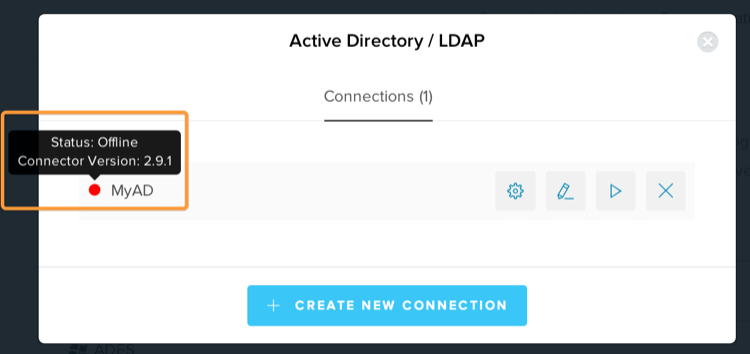
4. The version number of your AD/LDAP Connector.
#### Linux
On a Linux machine, run the provided Node.js program to launch the troubleshooting tool.
1. Open a new terminal window.
2. Change the working directory to the AD/LDAP Connector folder (`AD LDAP Connector`).
3. Run the `node troubleshoot.js` command.
## Installation and configuration issues
After clicking **Save**, the AD/LDAP Connector Admin Console performs a series of tests to validate the provided information. The results of the tests are displayed under the **Configuration log** heading.
The Admin Console performs the following tests:
* **Test 1**: Attempts to establish a TCP connection to the LDAP server and port specified. If Test 1 fails, check basic network connectivity and firewall settings that might prevent such a connection.
* **Test 2**: Attempts to perform an LDAP bind on the LDAP server and port specified and with the username and password provided. If Test 2 fails, check the LDAP connection string, search path, username, and password.
* **Test 3**: Attempts to perform an LDAP search against the directory to check the privileges of the specified username. If Test 3 fails, check the privileges of the username in the target directory.
* **Test 4**: Attempts to establish a connection to the Auth0 server. If Test 4 fails, check network connectivity and firewall settings that might prevent such a connection.
## Common issues and solutions
Descriptions of several common issues and their solutions are listed below.
### Authentication requests take too long to process
By default, the Auth0 AD/LDAP Connector imports a user’s group memberships from Active Directory and includes them on the `user` object.
This behavior requires the AD/LDAP Connector to perform additional queries against Active Directory, which can significantly increase the duration of the authentication process.
If you do not need groups to be returned on the user profile, Auth0 recommends that you explicitly disable the `GROUPS` variable in the [AD/LDAP Connector configuration file](/docs/authenticate/identity-providers/enterprise-identity-providers/active-directory-ldap/ad-ldap-connector/ad-ldap-connector-config-file-schema).
### Host CPU utilization is high
If the CPU utilization on the machine hosting the AD/LDAP Connector is consistently high (for example, sustained utilization above 60%), there are several mitigation strategies.
#### Uninstall non-critical services
Uninstall any non-critical services on the host machine that may be consuming CPU cycles.
#### Modify group import configuration
If you do not require groups to be returned on the user profile, disable group import as described in [Authentication requests take too long to process](#authentication-requests-take-too-long-to-process).
If you do require groups to be returned on the user profile, investigate the groups being returned on the Auth0 user profiles. Queries against nested and recursive groups can cause high CPU utilization. If possible, test with group import disabled to assess the impact of the group queries.
To mitigate the impact, fix any recursive or otherwise problematic group assignments in your AD/LDAP server, and/or increase the value of the `GROUPS_CACHE_SECONDS` variable in the [AD/LDAP Connector configuration file](/docs/authenticate/identity-providers/enterprise-identity-providers/active-directory-ldap/ad-ldap-connector/ad-ldap-connector-config-file-schema).
#### Evaluate volume of active users
Check if the number of active users using the AD/LDAP Connector has increased since you initially deployed it. You can evaluate this by using your own [monitoring solution](/docs/customize/log-streams), or you can get an estimate from the [Auth0 active users report](/docs/troubleshoot/customer-support/manage-subscriptions/monitor-subscription-usage).
In Microsoft Windows Server environments, Microsoft System Center Operations Manager (SCOM) can be configured to monitor and alert on the service status of the AD/LDAP Connector. For more information, see [Monitor AD/LDAP Connector with System Center Operations Manager](/docs/authenticate/identity-providers/enterprise-identity-providers/active-directory-ldap/ad-ldap-connector/ad-ldap-connector-scom).
If the number of active users has increased, and all steps above have already been followed, you may need to upgrade your host machine’s hardware specifications, or configure a [High Availability environment](/docs/authenticate/identity-providers/enterprise-identity-providers/active-directory-ldap/ad-ldap-connector/ad-ldap-high-availability).
### Clock skew
The connector requires the clock on the server to be synchronized with the Auth0 service. The maximum allowed threshold is 5 seconds.
If you have a clock skew, you'll see output like this in the troubleshooter and connector logs:
```text lines
12:18:55 - info: * Testing clock skew...
12:18:55 - error: × Clock skew detected:
12:18:55 - error: > Local time: 2020-05-04 12:18:55
12:18:55 - error: > Auth0 time: 2020-05-04 12:19:10
```
Make sure the clock of your server is current. If the time is not correct, it will cause authentication requests to fail. This can be fixed by ensuring the system is properly configured to poll a sync server via the Network Time Protocol (NTP). In Windows environments, the NTP provider is usually the same domain controller. Make sure that your domain controller is synchronized with some external service.
To learn how to synchronize your Active Directory environment with an external time server, read [How to configure NTP server in Active Directory, Step by step on renanrodrigues.com](https://www.renanrodrigues.com/post/how-to-configure-ntp-server-in-active-directory-step-by-step).
If you are unsure if your server's clock is in sync with NTP, go to [https://nist.time.gov](https://nist.time.gov) and compare the time on that page with the time in the server where the connector is running. You shouldn't notice more than a one (1) second difference between them.
### No connection to Active Directory
The AD/LDAP Connector must be installed on a server that can reach your LDAP server. When firewalls and VPN connections are placed between the AD/LDAP Connector and the LDAP server, you may experience connectivity issues.
If you’re configuring a Windows Network with Active Directory, use the `nltest` command. For example, to test if a specific machine can reach the `fabrikam.local` domain, use `nltest /dsgetdc:fabrikam.local`.
To see to which domain the current server is connected to, use `nltest /dsgetdc:`.
If a domain does not exist or cannot be reached, `nltest` will return an error message: `Getting DC name failed: Status = 1355 0x54b ERROR_NO_SUCH_DOMAIN`.
### UNABLE\_TO\_VERIFY\_LEAF\_SIGNATURE error message (Private Cloud)
This error applies to the AD/LDAP Connector in combination with Private Cloud.
This error message occurs when the AD/LDAP Connector fails to start when it can't validate the SSL certificate configured in the Private Cloud. This can happen when the Root Certificate (or any Intermediate Certificates) are missing in the machine's Certificate Store (Windows). In order to solve this, import the certificate chain in the **Local Machine > Trusted Root** certificate store on the machine where the AD/LDAP Connector is installed.
### Connector behind a proxy
If the machine hosting the connector is behind a proxy, you can set an `HTTP_PROXY` system environment variable, or you can set the `HTTP_PROXY` variable in the [AD/LDAP Connector configuration file](/docs/authenticate/identity-providers/enterprise-identity-providers/active-directory-ldap/ad-ldap-connector/ad-ldap-connector-config-file-schema). If using an authenticated proxy, the URL must be in the format `http://USERNAME:PASSWORD@SERVER_URL:PORT`.
If you set system environment variables, or modify the [AD/LDAP Connector configuration file](/docs/authenticate/identity-providers/enterprise-identity-providers/active-directory-ldap/ad-ldap-connector/ad-ldap-connector-config-file-schema), you must restart the AD/LDAP Connector for the changes to take effect.
The `HTTP_PROXY` URL must be the URL of the proxy itself and cannot point to a `.pac` (auto-config) file. If your proxy is configured through a `.pac` file, download the `.pac` file and find the proxy URL there.
An incorrectly configured proxy can result in several errors, such as `Auth0 servers not reachable` and `SELF_SIGNED_CERT_IN_CHAIN` errors.
If you have configured a proxy URL and restarted the AD/LDAP Connector, but are still seeing `SELF_SIGNED_CERT_IN_CHAIN` errors, make sure that your server is trusting the root certificate of the proxy. On a Windows machine, you can check this by opening `certmgr.msc` and looking for your proxy's certificate. To learn more, read [Proxy auto config (PAC) on Wikipedia](https://en.wikipedia.org/wiki/Proxy_auto-config).
### No internet connectivity
Ensure that your server can connect to your Auth0 tenant (`https://{yourDomain}`).
To verify this, open a browser and navigate to `https://{yourDomain}/test`.
### Service account permissions
The Service account used to configure the AD/LDAP Connector must have `read` permissions on the AD/LDAP server, and must be capable of querying groups for users.
### Kerberos issues
To enable verbose logging of Kerberos requests:
1. Add `DEBUG=kerberos-server` as a system environment variable.
2. Restart the AD/LDAP Connector.
3. Log in.
4. Check the logs for more information.
If you have Kerberos enabled, but your users are being prompted for username/password, verify that the IP address setting is properly configured. For more information, see [Configure AD/LDAP Connector Authentication with Kerberos](/docs/authenticate/identity-providers/enterprise-identity-providers/active-directory-ldap/ad-ldap-connector/configure-ad-ldap-connector-with-kerberos).
### Changes in user profile in AD are not immediately reflected in the app
The AD/LDAP Connector uses two levels of configurable caching:
1. **Auth0 server**: Caches both the user’s credentials and their profile.
2. **AD/LDAP Connector**: Caches a user’s group memberships.
The configuration of these settings determines the immediacy that changes in your directory may be reflected in a user’s profile when they log in to your application(s). In some AD/LDAP installations, user attributes synchronization may take a few minutes.
#### Caching on the Auth0 server
The Auth0 server caches the user’s last successfully authenticated profile, including a hash of their username and password. It is enabled by default, and can be disabled.
The purpose of this first-level cache is to maximize availability of authentication transactions when AD is unavailable, such as during a network outage. It is only activated if the AD/LDAP Connector or the AD/LDAP server(s) are unavailable.
#### Caching in the AD/LDAP Connector
The AD/LDAP Connector caches a user’s group memberships. This cache’s lifetime is determined by the `GROUPS_CACHE_SECONDS` variable in the [AD/LDAP Connector configuration file](/docs/authenticate/identity-providers/enterprise-identity-providers/active-directory-ldap/ad-ldap-connector/ad-ldap-connector-config-file-schema), with a default value of 600 (seconds).
The purpose of this second-level cache is to minimize execution time. By default, the AD/LDAP Connector retrieves all group membership of a user recursively, which can be an expensive process in some AD/LDAP installations. This cache is deleted every time you restart the AD/LDAP Connector.
### Connector restarts after "auth0: Connection closed." message in the log
To avoid the requirement of an open inbound port in your servers, the AD/LDAP Connector creates a websocket connection to an available node in Auth0's server cluster and keeps it open to listen to incoming messages from Auth0.
Approximately once per day (though the frequency may vary under certain circumstances), each server node terminates the connection to allow internal deployment processes to occur. The AD/LDAP Connector detects the closed connection and terminates the process, allowing the service stack to restart the process, create a new connection to an available node, and resume operations.
To avoid any downtime, enable the cache:
1. Go to [Auth0 Dashboard > Authentication > Enterprise](https://manage.auth0.com/#/connections/enterprise), and select the **Active Directory/LDAP** connection type.
2. Select your AD/LDAP connection.
3. Switch to the **Applications** view, and enable the connection for the desired application(s).
4. Select **Save**.
### Receive "postUrl is required" error
You may encounter this error if you have not completed additional configuration for a [custom domain](/docs/customize/custom-domains).
In order to use AD/LDAP connections with Kerberos support, you will need to update the **Ticket** endpoint to work with the custom domain:
1. Open the [AD/LDAP Connector configuration file](/docs/authenticate/identity-providers/enterprise-identity-providers/active-directory-ldap/ad-ldap-connector/ad-ldap-connector-config-file-schema).
2. Set the `PROVISIONING_TICKET` configuration variable to `https://{yourDomain}/p/ad/jUG0dN0R`.
3. Restart the AD/LDAP Connector.
### Unable to verify issuer certificate locally
If you receive the `UNABLE_TO_GET_ISSUER_CERT_LOCALLY` error after configuring an AD/LDAP Connector, the Certificate Authority could be missing from your machine.
* If your tenant is in the public cloud environment, verify that you have the [ISRG Root X1 certificate](https://letsencrypt.org/certificates/#root-certificates) in your Trusted Store on the machine with the installed AD/LDAP Connector.
* If you are on the converged platform environment, add the [ISRG Root X2 certificate](https://letsencrypt.org/certificates/#root-certificates) to the Trusted Store on the machine with the installed AD/LDAP Connector.
If you are configuring a [High Availability environment](/docs/authenticate/identity-providers/enterprise-identity-providers/active-directory-ldap/ad-ldap-connector/ad-ldap-high-availability) and are encountering this error on an additional machine, verify that the Trusted Root Certificate Authorities on the additional machine matches the Trusted Root Certificate Authorities on the initial machine.
## Contact Auth0 Support
If you are unable to resolve any of these issues on your own, contact [Auth0 Support](/docs/troubleshoot/customer-support/open-and-manage-support-tickets).
To help the Support team troubleshoot your issue, include the following items in your support ticket:
1. Description of the issue.
2. An [export of your AD/LDAP configuration files](/docs/authenticate/identity-providers/enterprise-identity-providers/active-directory-ldap/ad-ldap-connector/import-export-ad-ldap-connector-configs).
3. A copy of the service log file(s):
* Windows: `C:\Program Files (x86)\Auth0\AD LDAP Connector\logs.log`
* Linux: `/var/log/auth0-adldap.log`
4. The version number of your AD/LDAP Connector.
 ## Learn more
* [AD/LDAP Connector System Requirements](/docs/authenticate/identity-providers/enterprise-identity-providers/active-directory-ldap/ad-ldap-connector/ad-ldap-connector-requirements)
* [Import and Export AD/LDAP Connector Configurations](/docs/authenticate/identity-providers/enterprise-identity-providers/active-directory-ldap/ad-ldap-connector/import-export-ad-ldap-connector-configs)
* [Set Up AD/LDAP Connector Test Environment](/docs/authenticate/identity-providers/enterprise-identity-providers/active-directory-ldap/ad-ldap-connector/ad-ldap-connector-test-environment)
* [Update AD/LDAP Connectors](/docs/authenticate/identity-providers/enterprise-identity-providers/active-directory-ldap/ad-ldap-connector/update-ad-ldap-connectors)
* [AD/LDAP Connector Configuration File Schema](/docs/authenticate/identity-providers/enterprise-identity-providers/active-directory-ldap/ad-ldap-connector/ad-ldap-connector-config-file-schema)
* [Monitor AD/LDAP Connector with System Center Operations Manager](/docs/authenticate/identity-providers/enterprise-identity-providers/active-directory-ldap/ad-ldap-connector/ad-ldap-connector-scom)
## Learn more
* [AD/LDAP Connector System Requirements](/docs/authenticate/identity-providers/enterprise-identity-providers/active-directory-ldap/ad-ldap-connector/ad-ldap-connector-requirements)
* [Import and Export AD/LDAP Connector Configurations](/docs/authenticate/identity-providers/enterprise-identity-providers/active-directory-ldap/ad-ldap-connector/import-export-ad-ldap-connector-configs)
* [Set Up AD/LDAP Connector Test Environment](/docs/authenticate/identity-providers/enterprise-identity-providers/active-directory-ldap/ad-ldap-connector/ad-ldap-connector-test-environment)
* [Update AD/LDAP Connectors](/docs/authenticate/identity-providers/enterprise-identity-providers/active-directory-ldap/ad-ldap-connector/update-ad-ldap-connectors)
* [AD/LDAP Connector Configuration File Schema](/docs/authenticate/identity-providers/enterprise-identity-providers/active-directory-ldap/ad-ldap-connector/ad-ldap-connector-config-file-schema)
* [Monitor AD/LDAP Connector with System Center Operations Manager](/docs/authenticate/identity-providers/enterprise-identity-providers/active-directory-ldap/ad-ldap-connector/ad-ldap-connector-scom)