> ## Documentation Index
> Fetch the complete documentation index at: https://docs-staging-quickstart-revamp.mintlify.site/llms.txt
> Use this file to discover all available pages before exploring further.

# Configure Resource Server for Sender Constraining

<Callout icon="file-lines" color="#0EA5E9" iconType="regular">
  To use Highly Regulated Identity features, you must have an Enterprise Plan with the Highly Regulated Identity add-on. Refer to [Auth0 Pricing](https://auth0.com/pricing/) for details.
</Callout>

When you enable Sender Constraining for an API, the resource server must enforce Sender Constraining whenever the client calls the resource server with a certificate-bound access token. The resource server does so by:

1. Requesting the client certificate from the established mTLS connection
2. Verifying that the client certificate’s thumbprint matches the thumbprint in the access token

To configure a resource server for Sender Constraining, see [Enable Sender Constraining for a resource server](#enable-sender-constraining-for-a-resource-server).

## Client certificate verification

Unlike the authorization server or customer edge, the resource server only needs to verify the thumbprint of the client certificate instead of its entire certificate chain. For mTLS Sender Constraining, the resource server examines the `cnf` claim of the access token:

```
"cnf":{"x5t#S256":"A4DtL2JmUMhAsvJj5tKyn64SqzmuXbMrJa0n761y5v0"}
```

In our example `cnf` claim, `x5t#S256` indicates that the access token is bound to an mTLS client certificate with a thumbprint of `A4DtL2JmUMhAsvJj5tKyn64SqzmuXbMrJa0n761y5v0`. To pass client certificate verification, the resource server must verify that the client certificate has a matching thumbprint of `A4DtL2JmUMhAsvJj5tKyn64SqzmuXbMrJa0n761y5v0`. To learn more about how the thumbprint is calculated, read RFC 8705’s section on [JWT Certificate Thumbprint Confirmation Method](https://www.rfc-editor.org/rfc/rfc8705#name-jwt-certificate-thumbprint-).

If the client certificate was not sent, or the thumbprint of the client certificate does not match, the resource server rejects the request using an `HTTP 401` status code and an `invalid_token` error code. To learn more, read RFC 8705’s sections on [Mutual-TLS Client Certificate-Bound Access Tokens](https://www.rfc-editor.org/rfc/rfc8705#name-mutual-tls-client-certifica) and [Resource Servers](https://www.rfc-editor.org/rfc/rfc8705#name-resource-server).

Resource servers that progressively migrate clients to use mTLS may wish to expose their API at two domains: one non-mTLS domain for non-mTLS clients and one mTLS-enabled domain for mTLS-capable clients. An alternative is to create an entirely separate mTLS-only resource server on an mTLS-enabled domain.

## Configure Sender Constraining for a resource server in Auth0

Access tokens issued by Auth0 can be constrained to the sender (i.e. the client application) that needs to access APIs at a resource server.

Use the [Auth0 Dashboard](https://manage.auth0.com/#/apis) or [Management API](https://auth0.com/docs/api/management/v2) to enable Sender Constraining for a resource server.

<Tabs>
  <Tab title="Auth0 Dashboard">
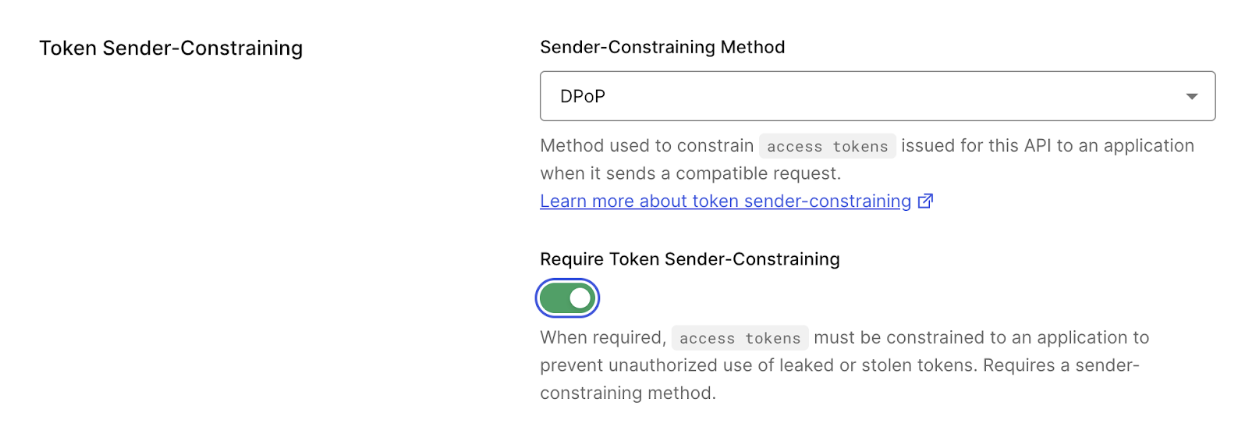
    To enable Token Binding or sender constraining, configure the **API Settings** of your API.

    1. Navigate to [Auth0 Dashboard > Applications > APIs](https://manage.auth0.com/#/apis).

    2. Select the API you want to configure.

    3. Under the **Settings** tab, find the **Token Sender-Constraining** section.

    4. Configure the following:

    5. Sender Constraining Method:

       1. **None:** Don’t enable a sender constraining method for your resource server.
       2. **mTLS**: Enable mTLS as the sender constraining method for your resource server.
       3. **DPoP:** Enable DPoP as the sender constraining method for your resource server.

    B. Toggle on **Require Token Sender Constraining**. All access tokens issued to an application for this API will be constrained to that application.

    <Frame>
      <img src="https://mintcdn.com/docs-staging-quickstart-revamp/TO6FS4AgTzQGgpsU/images/cdy7uua7fh8z/3Dv98iZosdpJMcZXfXyurn/823fa368ab874218fbb737aacac9b262/Screenshot_2025-07-28_at_3.59.01%25C3%25A2__PM.png?fit=max&auto=format&n=TO6FS4AgTzQGgpsU&q=85&s=5655531d8b544138ee15f53eec3ba41b" alt="Auth0 Dashboard > APIs > Settings > Token binding" data-og-width="1250" width="1250" data-og-height="432" height="432" data-path="images/cdy7uua7fh8z/3Dv98iZosdpJMcZXfXyurn/823fa368ab874218fbb737aacac9b262/Screenshot_2025-07-28_at_3.59.01%C3%A2__PM.png" data-optimize="true" data-opv="3" srcset="https://mintcdn.com/docs-staging-quickstart-revamp/TO6FS4AgTzQGgpsU/images/cdy7uua7fh8z/3Dv98iZosdpJMcZXfXyurn/823fa368ab874218fbb737aacac9b262/Screenshot_2025-07-28_at_3.59.01%25C3%25A2__PM.png?w=280&fit=max&auto=format&n=TO6FS4AgTzQGgpsU&q=85&s=aae5f6c04f23a421558990c728c7cb07 280w, https://mintcdn.com/docs-staging-quickstart-revamp/TO6FS4AgTzQGgpsU/images/cdy7uua7fh8z/3Dv98iZosdpJMcZXfXyurn/823fa368ab874218fbb737aacac9b262/Screenshot_2025-07-28_at_3.59.01%25C3%25A2__PM.png?w=560&fit=max&auto=format&n=TO6FS4AgTzQGgpsU&q=85&s=b9994b790c11d817be2ceb00699d2596 560w, https://mintcdn.com/docs-staging-quickstart-revamp/TO6FS4AgTzQGgpsU/images/cdy7uua7fh8z/3Dv98iZosdpJMcZXfXyurn/823fa368ab874218fbb737aacac9b262/Screenshot_2025-07-28_at_3.59.01%25C3%25A2__PM.png?w=840&fit=max&auto=format&n=TO6FS4AgTzQGgpsU&q=85&s=264d520e5560507ee85b332dee39c8bb 840w, https://mintcdn.com/docs-staging-quickstart-revamp/TO6FS4AgTzQGgpsU/images/cdy7uua7fh8z/3Dv98iZosdpJMcZXfXyurn/823fa368ab874218fbb737aacac9b262/Screenshot_2025-07-28_at_3.59.01%25C3%25A2__PM.png?w=1100&fit=max&auto=format&n=TO6FS4AgTzQGgpsU&q=85&s=66630479056e6626043fdd70989a9eae 1100w, https://mintcdn.com/docs-staging-quickstart-revamp/TO6FS4AgTzQGgpsU/images/cdy7uua7fh8z/3Dv98iZosdpJMcZXfXyurn/823fa368ab874218fbb737aacac9b262/Screenshot_2025-07-28_at_3.59.01%25C3%25A2__PM.png?w=1650&fit=max&auto=format&n=TO6FS4AgTzQGgpsU&q=85&s=09bdc2d56c6d5f8075308fecff904768 1650w, https://mintcdn.com/docs-staging-quickstart-revamp/TO6FS4AgTzQGgpsU/images/cdy7uua7fh8z/3Dv98iZosdpJMcZXfXyurn/823fa368ab874218fbb737aacac9b262/Screenshot_2025-07-28_at_3.59.01%25C3%25A2__PM.png?w=2500&fit=max&auto=format&n=TO6FS4AgTzQGgpsU&q=85&s=3fcd93d1987eeb854fc40f44c9a4eaf5 2500w" />
    </Frame>
  </Tab>

  <Tab title="Management API">
    To enable Sender Constraining with the Management API, send a PATCH request to [update the resource server](https://auth0.com/docs/api/management/v2/resource-servers/patch-resource-servers-by-id). Set the parameters of the `proof_of_possession` object to the following:

    <table class="table">
      <thead>
        <tr>
          <th><strong>Parameter</strong></th>
          <th><strong>Description</strong></th>
        </tr>
      </thead>

      <tbody>
        <tr>
          <td><code>mechanism</code></td>
          <td>Sets the sender-constraining method: <code>none</code>, <code>mtls</code>, or <code>dpop</code>.</td>
        </tr>

        <tr>
          <td><code>required</code></td>
          <td>When set to <code>true</code>, all access tokens issued to an application for this API will be constrained to that application. When set to <code>false</code>, sender constraining is not required for the application.</td>
        </tr>
      </tbody>
    </table>

    The following code sample is an example request body that configures a resource server for mTLS Sender Constraining:

    ```json
    "proof_of_possession": {
        "mechanism": "mtls",
        "required": true
      }
    ```
  </Tab>
</Tabs>
