> ## Documentation Index
> Fetch the complete documentation index at: https://docs-staging-quickstart-revamp.mintlify.site/llms.txt
> Use this file to discover all available pages before exploring further.

> How to use Auth0 logs as part of your incident response plan.

# Incident Response: Using Logs

Reviewing logs to assess the impact of an attack is a crucial step in your incident response plan. On this page you'll see how to access logs on the <Tooltip tip="Auth0 Dashboard: Auth0's main product to configure your services." cta="View Glossary" href="/docs/glossary?term=Auth0+Dashboard">Auth0 Dashboard</Tooltip> and some examples of log search queries to find indicators of an attack and review account activity.

## Check Auth0 logs

1. [Login to the Auth0 Dashboard](https://manage.auth0.com/#)
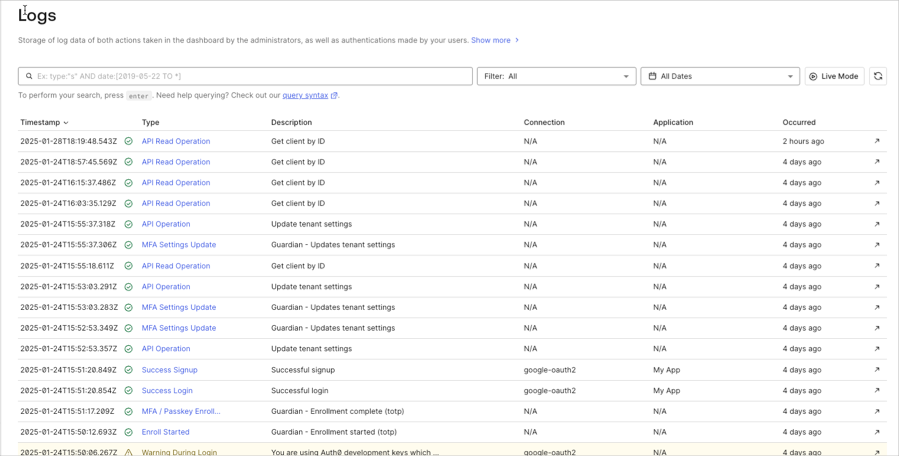
2. The Logs page is located under **Monitoring** in the menu on the left.
3. On the Logs page, you’ll see a search bar along with a filter selection and date picker.

<Frame>
  <img src="https://mintcdn.com/docs-staging-quickstart-revamp/MuTsjoV4fPPSGZz9/images/cdy7uua7fh8z/2l9LfKEjrprVmHfWt80VX0/4e48bc6ad3a8b591014e23fdb7353405/2025-01-28_15-07-43.png?fit=max&auto=format&n=MuTsjoV4fPPSGZz9&q=85&s=cccc052039ad871a0124fe743fc1dd0a" alt="Dashboard Monitoring Logs" width="899" height="456" data-path="images/cdy7uua7fh8z/2l9LfKEjrprVmHfWt80VX0/4e48bc6ad3a8b591014e23fdb7353405/2025-01-28_15-07-43.png" />
</Frame>

Select a log event from the list to see a **Summary** of the event along with further **Details** including the raw JSON.

### Log structure

Each log event has the following fields:

<table class="table">
  <thead>
    <tr>
      <th>Field</th>
      <th>Description</th>
    </tr>
  </thead>

  <tbody>
    <tr>
      <td><code>date</code></td>
      <td>Timestamp when this event occurred.</td>
    </tr>

    <tr>
      <td><code>log\_id</code></td>
      <td>The id of the log event</td>
    </tr>

    <tr>
      <td><code>type</code></td>
      <td>The log event type</td>
    </tr>

    <tr>
      <td><code>description</code></td>
      <td>The description of the event.</td>
    </tr>

    <tr>
      <td><code>connection</code></td>
      <td>The connection name related to the event.</td>
    </tr>

    <tr>
      <td><code>connection\_id</code></td>
      <td>The connection id related to the event.</td>
    </tr>

    <tr>
      <td><code>client\_id</code></td>
      <td>The client id related to the event</td>
    </tr>

    <tr>
      <td><code>client\_name</code></td>
      <td>The name of the client related to the event.</td>
    </tr>

    <tr>
      <td><code>ip</code></td>
      <td>The IP address from where the request that caused the log event originated.</td>
    </tr>

    <tr>
      <td><code>user\_agent</code></td>
      <td>The user agent that is related to the event.</td>
    </tr>

    <tr>
      <td><code>details</code></td>
      <td>An object containing further information for this log event.</td>
    </tr>

    <tr>
      <td><code>user\_id</code></td>
      <td>The user id related to the event.</td>
    </tr>

    <tr>
      <td><code>user\_name</code></td>
      <td>The user name related to the event.</td>
    </tr>

    <tr>
      <td><code>strategy</code></td>
      <td>The connection strategy related to the event.</td>
    </tr>

    <tr>
      <td><code>strategy\_type</code></td>
      <td>The connection strategy type related to the event.</td>
    </tr>
  </tbody>
</table>

### Example of failed login log event

Here is an example log event for a failed login due to an incorrect password:

```json lines
{
  "date": "2020-10-27T19:39:54.699Z",
  "type": "fp",
  "description": "Wrong email or password.",
  "connection": "Username-Password-Authentication",
  "connection_id": "con_ABC123",
  "client_id": "ABCDEFG123456789",
  "client_name": "All Applications",
  "ip": "99.xxx.xxx.xxx",
  "user_agent": "Chrome 86.0.4240 / Mac OS X 10.15.6",
  "details": {
    "error": {
      "message": "Wrong email or password."
    }
  },
  "user_id": "auth0|ABC123",
  "user_name": "test@test.com",
  "strategy": "auth0",
  "strategy_type": "database",
  "log_id": "123456789",
  "_id": "123456789",
  "isMobile": false
}
```

## Indicators of an attack

Identifying an attack early on may be difficult, but here are some things to look for in your logs along with example search queries:

* High numbers of failed logins with invalid usernames or login attempts for non-existent users.

  * `type:"fu"`
  * `description:"missing username parameter"`
  * `description:"Wrong email or password"`
* Large number of accounts reaching the failed login attempts limit.

  * `type:"limit_wc"`
* A high number of login attempts using a leaked password.

  * `type:"pwd_leak"`

During your investigation take note of IP addresses, applications being targeted, and connections or <Tooltip tip="Identity Provider (IdP): Service that stores and manages digital identities." cta="View Glossary" href="/docs/glossary?term=identity+providers">identity providers</Tooltip> used.

<Callout icon="file-lines" color="#0EA5E9" iconType="regular">
  The [Log Search Query Syntax](/docs/deploy-monitor/logs/log-search-query-syntax) page provides details on Auth0's log query syntax and includes more example queries.
</Callout>

## Identify compromised user accounts

To identify user accounts that may have been compromised you can search for:

* Successful login events from a suspicious IP address:

  * `type:"s" AND ip:"99.xxx.xxx.xxx"`

## Check compromised user account activity

After identifying a compromised user account you'll want to check the account's activity:

* Search for other log events with the same `user_id`: `user_id:"auth0|ABC123"`
* Check the `client_name` or `client_id` log event fields to see which applications were accessed. Make a note of when access occurred.
* Check for administration access or Auth0 configuration changes
* Search for recent <Tooltip tip="Management API: A product to allow customers to perform administrative tasks." cta="View Glossary" href="/docs/glossary?term=Management+API">Management API</Tooltip> calls: `type:"sapi"`

## Delete or block users from the dashboard

1. Go to [Dashboard > User Management > Users](https://manage.auth0.com/#/users).
2. Search for the user to delete or block.
3. Click the "**...**" button on the far right of the user.
4. Select **Block** or **Delete** and confirm.