> ## Documentation Index
> Fetch the complete documentation index at: https://docs-staging-quickstart-revamp.mintlify.site/llms.txt
> Use this file to discover all available pages before exploring further.
> This guide demonstrates how to integrate Auth0 with a Flutter application using the Auth0 Flutter SDK.
# Add Login to Your Flutter Application
export const SignUpForm = () => {
return
Sign up for an{" "}
Auth0 account
{" "}
or{" "}
console.log("log in")}>
log in
{" "}
to your existing account to integrate directly with your own tenant.
;
};
export const sections = [{
id: "configure-auth0",
title: "Configure Auth0"
}, {
id: "install-the-auth0-flutter-sdk",
title: "Install the Auth0 Flutter SDK"
}, {
id: "add-login-to-your-application",
title: "Add login to your application"
}, {
id: "add-logout-to-your-application",
title: "Add logout to your application"
}, {
id: "show-user-profile-information",
title: "Show user profile information"
}];
Auth0 allows you to quickly add authentication and access user profile information in your application. This guide
demonstrates how to integrate Auth0 with a Flutter application using the [Auth0 Flutter SDK](https://github.com/auth0/auth0-flutter).
The Flutter SDK currently only supports Flutter applications running on Android, iOS, or Web platforms.
This quickstart assumes you already have a [Flutter](https://flutter.dev/) application up and running. If not, check out the [Flutter "getting
started" guides](https://docs.flutter.dev/get-started/install) to get started with a simple app.
You should also be familiar with the [Flutter command line tool](https://docs.flutter.dev/reference/flutter-cli).
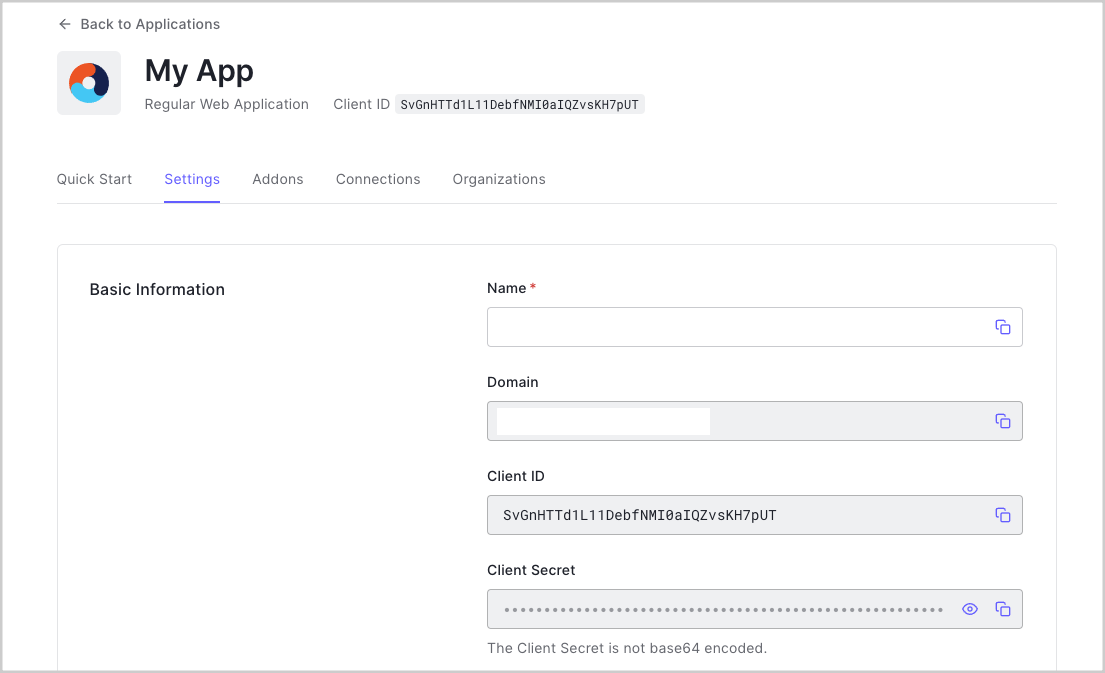
When you signed up for Auth0, a new application was created for you, or you could have created a new one. You
will need some details about that application to communicate with Auth0. You can get these details from the [Application
Settings](https://manage.auth0.com/#/applications) section in the Auth0 dashboard.
When using the Default App with a Native or Single Page Application, ensure to update the **Token
Endpoint Authentication Method** to `None` and set the **Application Type** to either
`SPA` or `Native`.
You need the following information:
* **Domain**
* **Client ID**
If you download the sample from the top of this page, these details are filled out for you.
### Configure Callback URLs
A callback URL is a URL in your application where Auth0 redirects the user after they have authenticated. The
callback URL for your app must be added to the **Allowed Callback URLs** field in your [Application
Settings](https://manage.auth0.com/#/applications). If this field is not set, users will be unable to log in to the application and will get an error.
If you are following along with the sample project you downloaded from the top of this page, you should
set the **Allowed Callback URL** to `http://localhost:3000`.
### Configure Logout URLs
A logout URL is a URL in your application that Auth0 can return to after the user has been logged out of the
authorization server. This is specified in the `returnTo` query parameter. The logout URL for your app
must be added to the **Allowed Logout URLs** field in your [Application Settings](https://manage.auth0.com/#/applications). If this field is not set, users will be
unable to log out from the application and will get an error.
If you are following along with the sample project you downloaded from the top of this page, the logout
URL you need to add to the **Allowed Logout URLs** field is `http://localhost:3000`.
### Configure Allowed Web Origins
You need to add the URL for your app to the **Allowed Web Origins** field in your [Application Settings](https://manage.auth0.com/#/applications/\{yourClientId}/settings). If you don't register your application URL here, the
application will be unable to silently refresh the authentication tokens and your users will be logged out the
next time they visit the application, or refresh the page.
If you are following along with the sample project you downloaded from the top of this page, you should
set the **Allowed Web Origins** to `http://localhost:3000`.
Add the Auth0 Flutter SDK into the project:
```bash
flutter pub add auth0_flutter
```
Add the following script tag to your `index.html` page:
```html
```
[Universal Login](/docs/authenticate/login/auth0-universal-login) is
the easiest way to set up authentication in your application. We recommend using it for the best experience, best
security, and the fullest array of features.
Integrate Auth0 Universal Login in your Flutter Web app by using the `Auth0Web` class. Redirect your
users to the Auth0 Universal Login page using `loginWithRedirect()`.
You will normally need to specify the `redirectUrl` parameter to
`loginWithRedirect`. Omitting this will cause Auth0 to use the [default login route](/docs/authenticate/login/auth0-universal-login/configure-default-login-routes), which is not configured by default.
When a user logs in, they are redirected back to your application. You are then able to access the ID and access
tokens for this user by calling `onLoad` during startup and handling the credentials that are given to
you:
```js
auth0.onLoad().then((final credentials) => setState(() {
// Handle or store credentials here
_credentials = credentials;
}));
```
##### Checkpoint
Add a button to your app that calls `loginWithRedirect()` and logs the user into your app.
Verify that you are redirected to Auth0 for authentication and then back to your application.
Verify that you can access `credentials` as a result of calling `onLoad` and that
you're able to access the ID and access tokens.
To log users out, redirect them to the Auth0 logout endpoint to clear their login session by calling the Auth0
Flutter SDK `logout()`. [Read
more about logging out of Auth0](/docs/authenticate/login/logout).
You will normally want to specify `returnToUrl` when calling `logout`, otherwise
Auth0 [will default to the first URL in the Allowed Logout URLs list](/docs/authenticate/login/logout/redirect-users-after-logout).
##### Checkpoint
Add a button to your app that calls `logout()` and logs the user out of your application. When
you select it, verify that your Flutter app redirects you to the logout endpoint and back again. You
should not be logged in to your application.
The user profile automatically retrieves user profile properties for you when the page loads, and can be accessed
and stored by calling `onLoad` during application startup. The returned object from `onLoad`
contains a `user` property with all the user profile properties. This is internally populated by
decoding the ID token.
##### Checkpoint
Log in and inspect the `user` property on the result. Verify the current user's profile
information, such as `email` or `name`.
## Next Steps
Excellent work! If you made it this far, you should now have login, logout, and user profile information running in your application.
This concludes our quickstart tutorial, but there is so much more to explore. To learn more about what you can do with Auth0, check out:
* [Auth0 Dashboard](https://manage.auth0.com/dashboard/us/dev-s3674bdouue0bd73) - Learn how to configure and manage your Auth0 tenant and applications
* [auth0-flutter SDK](https://www.github.com/auth0/auth0-flutter/) - Explore the SDK used in this tutorial more fully
* [Auth0 Marketplace](https://marketplace.auth0.com/) - Discover integrations you can enable to extend Auth0’s functionality
```dart main_view.dart lines
import 'package:auth0_flutter/auth0_flutter.dart';
import 'package:auth0_flutter/auth0_flutter_web.dart';
import 'package:flutter/material.dart';
import 'profile_view.dart';
class MainView extends StatefulWidget {
const MainView({Key? key}) : super(key: key);
@override
State createState() => _MainViewState();
}
class _MainViewState extends State {
Credentials? _credentials;
late Auth0Web auth0;
@override
void initState() {
super.initState();
auth0 = Auth0Web('dev-s3674bdouue0bd73.us.auth0.com', 'QqpqsvIQHjLodaUIPpabJcIHoG41tbAv');
auth0.onLoad().then((final credentials) => setState(() {
_credentials = credentials;
}));
}
@override
Widget build(BuildContext context) {
return Column(
mainAxisAlignment: MainAxisAlignment.center,
children: [
if (_credentials == null)
ElevatedButton(
onPressed: () => auth0.loginWithRedirect(redirectUrl: 'http://localhost:3000'),
child: const Text("Log in"))
else
Column(
children: [
ProfileView(user: _credentials!.user),
ElevatedButton(
onPressed: () async {
await auth0.logout(returnToUrl: 'http://localhost:3000');
},
child: const Text("Log out"))
],
)
],
);
}
}
```
```dart profile_view.dart lines
import 'package:auth0_flutter/auth0_flutter.dart';
import 'package:flutter/material.dart';
class ProfileView extends StatelessWidget {
const ProfileView({Key? key, required this.user}) : super(key: key);
final UserProfile user;
@override
Widget build(BuildContext context) {
return Column(
mainAxisAlignment: MainAxisAlignment.center,
children: [
if (user.name != null) Text(user.name!),
if (user.email != null) Text(user.email!)
],
);
}
}
```
```dart main_view.dart lines
import 'package:auth0_flutter/auth0_flutter.dart';
import 'package:auth0_flutter/auth0_flutter_web.dart';
import 'package:flutter/material.dart';
import 'profile_view.dart';
class MainView extends StatefulWidget {
const MainView({Key? key}) : super(key: key);
@override
State createState() => _MainViewState();
}
class _MainViewState extends State {
Credentials? _credentials;
late Auth0Web auth0;
@override
void initState() {
super.initState();
auth0 = Auth0Web('dev-s3674bdouue0bd73.us.auth0.com', 'QqpqsvIQHjLodaUIPpabJcIHoG41tbAv');
auth0.onLoad().then((final credentials) => setState(() {
_credentials = credentials;
}));
}
@override
Widget build(BuildContext context) {
return Column(
mainAxisAlignment: MainAxisAlignment.center,
children: [
if (_credentials == null)
ElevatedButton(
onPressed: () => auth0.loginWithRedirect(redirectUrl: 'http://localhost:3000'),
child: const Text("Log in"))
else
Column(
children: [
ProfileView(user: _credentials!.user),
ElevatedButton(
onPressed: () async {
await auth0.logout(returnToUrl: 'http://localhost:3000');
},
child: const Text("Log out"))
],
)
],
);
}
}
```
```dart profile_view.dart lines
import 'package:auth0_flutter/auth0_flutter.dart';
import 'package:flutter/material.dart';
class ProfileView extends StatelessWidget {
const ProfileView({Key? key, required this.user}) : super(key: key);
final UserProfile user;
@override
Widget build(BuildContext context) {
return Column(
mainAxisAlignment: MainAxisAlignment.center,
children: [
if (user.name != null) Text(user.name!),
if (user.email != null) Text(user.email!)
],
);
}
}
```
 Sign up for an{" "}
Auth0 account
{" "}
or{" "}
console.log("log in")}>
log in
{" "}
to your existing account to integrate directly with your own tenant.
Sign up for an{" "}
Auth0 account
{" "}
or{" "}
console.log("log in")}>
log in
{" "}
to your existing account to integrate directly with your own tenant.