> ## Documentation Index
> Fetch the complete documentation index at: https://docs-staging-quickstart-revamp.mintlify.site/llms.txt
> Use this file to discover all available pages before exploring further.

> This guide demonstrates how to integrate Auth0 with a UWP C# application using the OidcClient.UWP SDK.

# Add Login to Your UWP application

export const LoggedInForm = ({sampleApp}) => {
  const LS_APPS_KEY = "auth_demo_apps";
  const LS_APP_CFG_KEY = "auth_demo_app_cfg";
  const CHANNEL = "auth_flows_sync_v1";
  const mkChannel = () => new BroadcastChannel(CHANNEL);
  function uid() {
    return Math.random().toString(36).slice(2) + Date.now().toString(36);
  }
  function loadApps() {
    const raw = localStorage.getItem(LS_APPS_KEY);
    if (raw) return JSON.parse(raw);
    const seeded = [{
      id: "mz9iNEIo2PHu7oeh8QRt19ndTyyCIgai",
      name: "Default App"
    }];
    localStorage.setItem(LS_APPS_KEY, JSON.stringify(seeded));
    return seeded;
  }
  function saveApps(apps) {
    localStorage.setItem(LS_APPS_KEY, JSON.stringify(apps));
  }
  function loadCfg() {
    const raw = localStorage.getItem(LS_APP_CFG_KEY);
    return raw ? JSON.parse(raw) : {};
  }
  function saveCfg(cfg) {
    localStorage.setItem(LS_APP_CFG_KEY, JSON.stringify(cfg));
  }
  const RightChevron = ({className = "w-5 h-5", ...props}) => <svg xmlns="http://www.w3.org/2000/svg" viewBox="0 0 24 24" stroke="currentColor" fill="none" strokeWidth="2" strokeLinecap="round" strokeLinejoin="round" className={className} {...props}>
      <polyline points="9 18 15 12 9 6" />
    </svg>;
  const LightningIcon = () => <svg width="24" height="24" viewBox="0 0 48 48" fill="none" xmlns="http://www.w3.org/2000/svg">
      <path fillRule="evenodd" clipRule="evenodd" className="fill-[#3F59E4] dark:fill-[#99A7F1]" d="M24.971 30.152H7.088c-1.786 0-2.745-2.103-1.574-3.453l19.07-21.988c1.33-1.532 3.835-.4 3.569 1.607L24.97 30.152z" />
      <path fillRule="evenodd" clipRule="evenodd" className="fill-[#3F59E4] dark:fill-[#99A7F1]" d="M23.201 17.885h17.885c1.787 0 2.746 2.102 1.575 3.453l-19.073 21.99c-1.33 1.532-3.835.4-3.568-1.607L23.2 17.885z" />
    </svg>;
  const LayersIcon = () => <svg width="24" height="24" viewBox="0 0 48 48" fill="none" xmlns="http://www.w3.org/2000/svg">
      <path className="fill-[#3F59E4] dark:fill-[#99A7F1]" d="M34.54 29.135l6.373 3.183c1.566.782 1.566 3.017 0 3.8l-14.815 7.396a4.623 4.623 0 01-4.125 0L7.174 36.12c-1.565-.782-1.565-3.017 0-3.798l6.532-3.214" />
      <path className="fill-[#AAB6F3] dark:fill-[#3449BA]" d="M34.54 18.86l6.373 3.183c1.566.782 1.566 3.016 0 3.8L26.098 33.24a4.623 4.623 0 01-4.125 0L7.174 25.843c-1.565-.781-1.565-3.016 0-3.798l6.33-3.164" />
      <path className="fill-[#CFD6F8] dark:fill-[#22307C]" d="M21.94 23.058L7.306 15.745c-1.62-.81-1.62-3.123 0-3.932l14.631-7.319a4.693 4.693 0 014.194 0l14.648 7.319c1.622.81 1.62 3.124 0 3.932L26.13 23.058c-1.321.66-2.873.66-4.191 0z" />
    </svg>;
  const GithubIcon = () => <svg xmlns="http://www.w3.org/2000/svg" viewBox="0 0 24 24" fill="none" stroke="currentColor" strokeWidth="2" strokeLinecap="round" strokeLinejoin="round" className="w-5 h-5">
      <path d="M9 19c-5 1.5-5-2.5-7-3m14 6v-3.87a3.37 3.37 0 0 0-.94-2.61c3.14-.35 6.44-1.54 6.44-7A5.44 5.44 0 0 0 20 4.77 5.07 5.07 0 0 0 19.91 1S18.73.65 16 2.48a13.38 13.38 0 0 0-7 0C6.27.65 5.09 1 5.09 1A5.07 5.07 0 0 0 5 4.77a5.44 5.44 0 0 0-1.5 3.78c0 5.42 3.3 6.61 6.44 7A3.37 3.37 0 0 0 9 18.13V22"></path>
    </svg>;
  function IconTile({children}) {
    return <div className="
          shrink-0 grid place-items-center w-10 h-10 rounded-lg
          bg-indigo-50 ring-1 ring-indigo-200/60
          dark:bg-indigo-950/40 dark:ring-white/10
        ">
        {children}
      </div>;
  }
  function Card({className = "", children}) {
    return <div className={`rounded-2xl shadow-sm ring-1 ring-zinc-200 dark:ring-zinc-800 ${className}`}>{children}</div>;
  }
  function Button({variant = "primary", type = "button", onClick, children}) {
    const base = "inline-flex items-center justify-center gap-2 h-10 px-4 rounded-xl font-medium transition";
    let styles = "";
    if (variant === "primary") {
      styles = "mint-bg-indigo-600 text-white hover:mint-bg-indigo-700";
    } else if (variant === "outline") {
      styles = "border border-zinc-300 dark:border-zinc-700 mint-bg-transparent hover:mint-bg-zinc-50 dark:hover:mint-bg-zinc-800";
    } else if (variant === "ghost") {
      styles = "hover:mint-bg-zinc-100 dark:hover:mint-bg-zinc-800";
    }
    return <button type={type} onClick={onClick} className={`${base} ${styles}`}>
        {children}
      </button>;
  }
  function Input({id, label, value, onChange, placeholder, name}) {
    return <label className="block space-y-1">
        <span className="text-sm text-zinc-700 dark:text-zinc-300">{label}</span>
        <input id={id} name={name} className="w-full h-11 px-3 rounded-xl border border-zinc-300 dark:border-zinc-700 bg-white dark:bg-zinc-900 text-zinc-900 dark:text-zinc-100 focus:outline-none focus:ring-2 focus:ring-indigo-500" placeholder={placeholder} value={value} onChange={e => onChange(e.target.value)} />
      </label>;
  }
  function Select({label, value, onChange, options}) {
    return <label className="block space-y-1 max-w-[300px]">
        <span className="text-sm text-zinc-700 dark:text-zinc-300">{label}</span>
        <div className="relative">
          <select className="w-full h-11 appearance-none px-3 pr-9 rounded-xl border border-zinc-300 dark:border-zinc-700 bg-white dark:bg-zinc-900 text-zinc-900 dark:text-zinc-100 focus:outline-none focus:ring-2 focus:ring-indigo-500" value={value} onChange={e => onChange(e.target.value)}>
            <optgroup label="Generic Applications">
              {options.map(o => <option key={o.id} value={o.id}>
                  {o.name}
                </option>)}
            </optgroup>
          </select>
          <svg className="pointer-events-none absolute right-3 top-1/2 -translate-y-1/2 w-5 h-5 text-zinc-500" viewBox="0 0 24 24">
            <path d="M7 10l5 5 5-5z" fill="currentColor" />
          </svg>
        </div>
      </label>;
  }
  function Toast({open, onClose, children}) {
    useEffect(() => {
      if (!open) return;
      const t = setTimeout(onClose, 2200);
      return () => clearTimeout(t);
    }, [open, onClose]);
    return <div className={`fixed right-4 top-4 z-50 transition ${open ? "opacity-100 translate-y-0" : "opacity-0 -translate-y-2 pointer-events-none"}`}>
        <div className="flex items-center gap-2 rounded-xl shadow ring-1 ring-emerald-200 bg-white dark:bg-zinc-900 px-4 py-2">
          <span className="w-1.5 h-8 rounded-l bg-emerald-500" />
          <svg className="w-5 h-5 text-emerald-600" viewBox="0 0 24 24" fill="none" stroke="currentColor" strokeWidth="2">
            <path d="M20 6L9 17l-5-5" />
          </svg>
          <span className="text-sm text-zinc-900 dark:text-zinc-100">{children}</span>
        </div>
      </div>;
  }
  function Flows() {
    const [route, setRoute] = useState("menu");
    const [apps, setApps] = useState(loadApps());
    const [cfg, setCfg] = useState(loadCfg());
    const [selected, setSelected] = useState(apps[0]?.id || "");
    const [toast, setToast] = useState(false);
    const [bc] = useState(() => mkChannel());
    useEffect(() => {
      if (!apps.find(a => a.id === selected)) {
        setSelected(apps[0]?.id || "");
      }
    }, [apps, selected]);
    useEffect(() => {
      const onMsg = e => {
        const {type, payload} = e.data || ({});
        switch (type) {
          case "NAV":
            setRoute(payload.route);
            break;
          case "SELECT":
            setSelected(payload.appId);
            break;
          case "APPS_UPDATED":
            setApps(loadApps());
            break;
          case "CFG_UPDATED":
            setCfg(loadCfg());
            setToast(true);
            break;
          default:
            break;
        }
      };
      bc.addEventListener("message", onMsg);
      return () => bc.removeEventListener("message", onMsg);
    }, [bc]);
    const nav = nextRoute => {
      setRoute(nextRoute);
      bc.postMessage({
        type: "NAV",
        payload: {
          route: nextRoute
        }
      });
    };
    const selectApp = appId => {
      setSelected(appId);
      bc.postMessage({
        type: "SELECT",
        payload: {
          appId
        }
      });
    };
    const onCreate = name => {
      const id = uid();
      const next = [...apps, {
        id,
        name: name || "Untitled"
      }];
      setApps(next);
      saveApps(next);
      bc.postMessage({
        type: "APPS_UPDATED"
      });
      selectApp(id);
      nav("integrate");
    };
    const onSaveCfg = (appId, data) => {
      const next = {
        ...cfg,
        [appId]: data
      };
      setCfg(next);
      saveCfg(next);
      setToast(true);
      bc.postMessage({
        type: "CFG_UPDATED"
      });
    };
    return <div>
        {route === "menu" && <Menu onCreate={() => nav("create")} onIntegrate={() => nav("integrate")} />}

        {route === "create" && <CreateForm onCancel={() => nav("menu")} onSave={onCreate} />}

        {route === "integrate" && <IntegrateForm apps={apps} selected={selected} onSelect={selectApp} saved={cfg[selected]} onSave={data => onSaveCfg(selected, data)} onCancel={() => nav("menu")} />}

        <Toast open={toast} onClose={() => setToast(false)}>
          Successfully saved your changes.
        </Toast>
      </div>;
  }
  function Menu({onCreate, onIntegrate}) {
    return <ul className="space-y-4 list-none login_list">
        <li className="list-none !px-0">
          <button onClick={onCreate} className="w-full text-left">
            <Card className="p-5 hover:shadow-md transition">
              <div className="flex items-center justify-between">
                <div className="flex items-center gap-4">
                  <IconTile>
                    <LightningIcon />
                  </IconTile>
                  <h2 className="text-lg">Create a new application</h2>
                </div>
                <RightChevron className="w-4 h-4 text-zinc-500" />
              </div>
            </Card>
          </button>
        </li>
        <li className="list-none !px-0">
          <button onClick={onIntegrate} className="w-full text-left">
            <Card className="p-5 hover:shadow-md transition">
              <div className="flex items-center justify-between">
                <div className="flex items-center gap-4">
                  <IconTile>
                    <LayersIcon />
                  </IconTile>
                  <h2 className="text-lg">Integrate with an existing application</h2>
                </div>
                <RightChevron className="w-4 h-4 text-zinc-500" />
              </div>
            </Card>
          </button>
        </li>
        <li className="list-none !px-0">
          <a className="no_external_icon block" href={sampleApp ? sampleApp : "/"} target="_blank" rel="noreferrer">
            <Card className="p-5 hover:shadow-md transition">
              <div className="flex items-center justify-between">
                <div className="flex items-center gap-4">
                  <IconTile>
                    <GithubIcon />
                  </IconTile>
                  <h2 className="text-lg">View a sample application</h2>
                </div>
                <RightChevron className="w-4 h-4 text-zinc-500" />
              </div>
            </Card>
          </a>
        </li>
      </ul>;
  }
  function CreateForm({onSave, onCancel}) {
    const [name, setName] = useState("");
    return <div className="space-y-6">
        <Input id="app-name" label="Application Name" placeholder="My App" value={name} onChange={setName} />
        <p className="text-sm text-zinc-500">You can change this later in the application settings.</p>
        <div className="flex gap-3">
          <Button onClick={() => onSave(name)}>Save</Button>
          <Button variant="outline" onClick={onCancel}>
            Cancel
          </Button>
        </div>
      </div>;
  }
  function IntegrateForm({apps, selected, onSelect, saved, onSave, onCancel}) {
    const [callbacks, setCallbacks] = useState(saved?.callbacks ?? "");
    const [logouts, setLogouts] = useState(saved?.logouts ?? "");
    const [origins, setOrigins] = useState(saved?.origins ?? "");
    useEffect(() => {
      setCallbacks(loadCfg()[selected]?.callbacks ?? "");
      setLogouts(loadCfg()[selected]?.logouts ?? "");
      setOrigins(loadCfg()[selected]?.origins ?? "");
    }, [selected]);
    return <div className="space-y-6">
        <div>
          <span className="block text-sm text-zinc-600 dark:text-zinc-300 mb-1">Select your Application</span>
          <Select label="" value={selected} onChange={onSelect} options={apps} />
        </div>

        <form className="space-y-4" onSubmit={e => {
      e.preventDefault();
      onSave({
        callbacks,
        logouts,
        origins
      });
    }}>
          <Input id="callbacks" name="callbacks" label="Callback URLs" placeholder="http://localhost:3000" value={callbacks} onChange={setCallbacks} />
          <Input id="logout" name="allowed_logout_urls" label="Logout URLs" placeholder="http://localhost:3000" value={logouts} onChange={setLogouts} />
          <Input id="origins" name="web_origins" label="Allowed Web Origins" placeholder="http://localhost:3000" value={origins} onChange={setOrigins} />

          <div className="flex gap-3 pt-2">
            <Button type="submit">Save</Button>
            <Button variant="outline" type="button" onClick={onCancel}>
              Cancel
            </Button>
          </div>
        </form>
      </div>;
  }
  return <div className="w-full mx-auto py-8">
      <Flows />
    </div>;
};

export const SignUpForm = () => {
  return <div className="flex flex-col gap-2 items-center h-full">
      <img noZoom src="/docs/img/quickstarts/action_hero_dashboard.svg" alt="Sign up for an Auth0 account" style={{
    width: "250px",
    height: "250px"
  }} />
      <span className="text-center" style={{
    width: "400px"
  }}>
        Sign up for an{" "}
        <a href="https://auth0.com/signup" target="_blank" rel="noopener noreferrer">
          Auth0 account
        </a>{" "}
        or{" "}
        <span className="font-semibold text-primary cursor-pointer" onClick={() => console.log("log in")}>
          log in
        </span>{" "}
        to your existing account to integrate directly with your own tenant.
      </span>
      <button onClick={() => console.log("sign up")} className="bg-primary dark:bg-primary-light text-white dark:text-black px-4 py-2 rounded-md mt-4 font-medium" style={{
    width: "140px"
  }}>
        Sign up
      </button>
    </div>;
};

export const SideMenuSectionItem = ({id, children}) => {
  return <div id={`side-menu-item-${id}`} className="recipe-side-menu-item flex flex-col w-full h-full">
      {children}
    </div>;
};

export const SideMenu = ({sections, children}) => {
  const [visibleSection, setVisibleSection] = useState(sections[0]?.id ?? null);
  const checkVisibility = () => {
    let currentVisible = null;
    const viewportHeight = window.innerHeight;
    const scrollY = window.scrollY;
    sections.forEach(({id}) => {
      const section = document.getElementById(id);
      if (section) {
        const rect = section.getBoundingClientRect();
        const sectionTop = rect.top + scrollY;
        const sectionBottom = sectionTop + rect.height;
        const multiplier = viewportHeight > 1600 ? 0.34 : 0.22;
        if (scrollY + viewportHeight * multiplier >= sectionTop && scrollY <= sectionBottom) {
          currentVisible = id;
        }
      }
    });
    if (currentVisible && currentVisible !== visibleSection) {
      setVisibleSection(currentVisible);
    }
  };
  useEffect(() => {
    const throttledCheck = () => {
      setTimeout(checkVisibility, 100);
    };
    checkVisibility();
    window.addEventListener("scroll", throttledCheck);
    return () => {
      window.removeEventListener("scroll", throttledCheck);
    };
  }, [sections, visibleSection]);
  useEffect(() => {
    sections.forEach(({id}) => {
      const section = document.getElementById(id);
      const sideMenuItem = document.getElementById(`side-menu-item-${id}`);
      if (section) {
        if (id === visibleSection) {
          section.classList.add("active-section");
        } else {
          section.classList.remove("active-section");
        }
      }
      if (sideMenuItem) {
        if (id === visibleSection) {
          sideMenuItem.classList.add("active-side-menu-item");
        } else {
          sideMenuItem.classList.remove("active-side-menu-item");
        }
      }
    });
  }, [visibleSection, sections]);
  return <div className="recipe-side-menu sticky px-2 py-1" style={{
    height: "calc(100vh - 7rem)",
    top: "7rem",
    scrollMarginTop: "var(--scroll-mt)"
  }}>
      {children.map(child => {
    if (child.props.id === visibleSection) {
      return child;
    }
    return null;
  })}
    </div>;
};

export const Section = ({id, title, stepNumber, children, isSingleColumn = false}) => {
  return <div id={id} className={`recipe-section flex flex-col transition-opacity duration-200`}>
      {}
      <Step title={title} stepNumber={stepNumber} titleSize="h3">
        {children}
      </Step>
    </div>;
};

export const Content = ({title, children}) => {
  return <div className="recipe-content flex flex-col">
      {title && <h1 className="text-3xl">{title}</h1>}
      {children}
    </div>;
};

export const Recipe = ({children, isSingleColumn = false}) => {
  return <div className={`pl-4 recipe-container mx-auto grid grid-cols-1 gap-10 relative ${isSingleColumn ? "md:grid-cols-1" : "md:grid-cols-2"}`}>
      {children}
    </div>;
};

export const sections = [{
  id: "system-requirements",
  title: "System Requirements"
}, {
  id: "configure-auth0",
  title: "Configure Auth0"
}, {
  id: "install-dependencies",
  title: "Install Dependencies"
}, {
  id: "trigger-authentication",
  title: "Trigger Authentication"
}, {
  id: "handle-authentication-tokens",
  title: "Handle Authentication Tokens"
}, {
  id: "logout",
  title: "Logout"
}];

<Recipe>
  <Content>
    This tutorial demonstrates how to add user login to a UWP C# application using Auth0. We recommend that you log in
    to follow this quickstart with examples configured for your account.

    <Section id={sections[0].id} title={sections[0].title} stepNumber="1">
      This tutorial and sample project have been tested with the following:

      * Microsoft Visual Studio 2022
      * Windows 10 SDK (10.0.26100.0)
      * Auth0.OidcClient.UWP 4.0.0

      <Info>
        **New to Auth?** Learn [How Auth0 works](/docs/overview), how it [integrates with Native Applications](/docs/architecture-scenarios/application/mobile-api) and which [protocol](/docs/api-auth/grant/authorization-code-pkce) it uses.
      </Info>

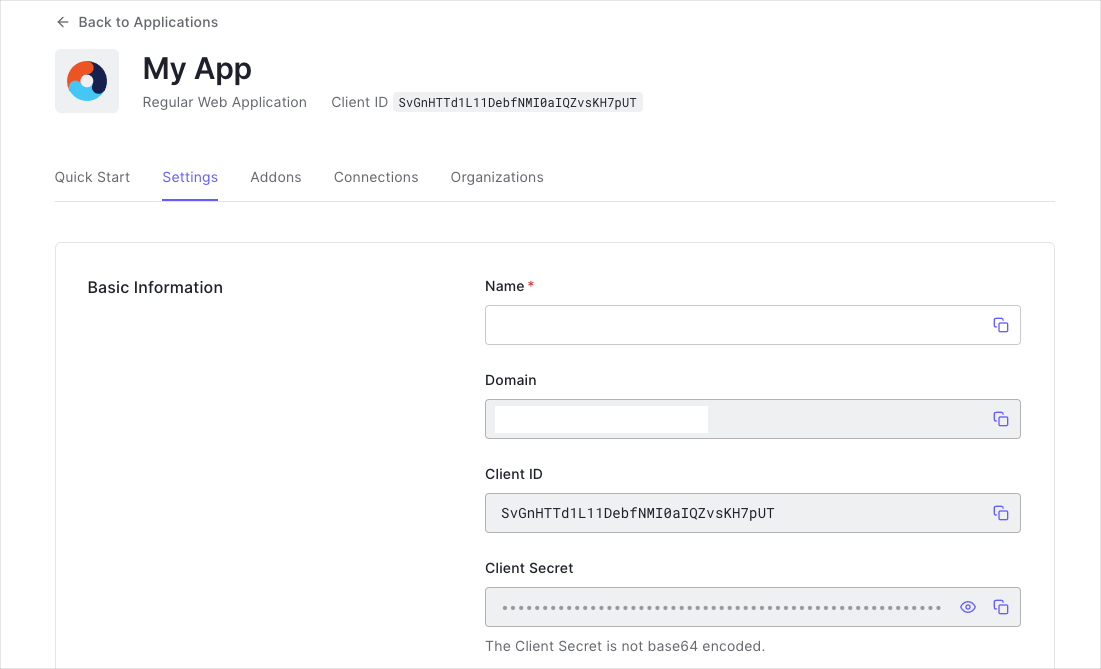
      ### Get Your Application Keys

      When you signed up for Auth0, a new application was created for you, or you could have created a new one.
      You will need some details about that application to communicate with Auth0. You can get these details from
      the [Application Settings](https://manage.auth0.com/dashboard/us/dev-gja8kxz4ndtex3rq/applications) section in the Auth0 dashboard.

      <Frame>
        <img src="https://cdn2.auth0.com/docs/1.14546.0/media/articles/dashboard/client_settings.png" />
      </Frame>

      <Info>
        When using the Default App with a Native or Single Page Application, ensure to update the
        **Token Endpoint Authentication Method** to `None` and set the
        **Application Type** to either `SPA` or `Native`.
      </Info>

      You need the following information:

      * **Domain**
      * **Client ID**

      <Info>
        If you download the sample from the top of this page, these details are filled out for you.
      </Info>

      markdownlint-disable MD002 MD041

      ### Configure Callback URLs

      A callback URL is a URL in your application where Auth0 redirects the user after they have authenticated. The
      callback URL for your app must be added to the **Allowed Callback URLs** field in your [Application Settings](https://manage.auth0.com/dashboard/us/dev-gja8kxz4ndtex3rq/applications). If this field is not set, users will be unable to log in to the
      application and will get an error.

      <Info>
        If you are following along with the sample project you downloaded from the top of this page, you should
        set the **Allowed Callback URLs** to
        `https://dev-gja8kxz4ndtex3rq.us.auth0.com/mobile`.
      </Info>

      markdownlint-disable MD002 MD041

      ### Configure Logout URLs

      A logout URL is a URL in your application that Auth0 can return to after the user has been logged out of the
      authorization server. This is specified in the `returnTo` query parameter. The logout URL for your
      app must be added to the **Allowed Logout URLs** field in your [Application Settings](https://manage.auth0.com/dashboard/us/dev-gja8kxz4ndtex3rq/applications). If this field is not set, users will be unable to log out from the
      application and will get an error.

      <Info>
        If you are following along with the sample project you downloaded from the top of this page, the
        logout URL you need to add to the **Allowed Logout URLs** field is
        `https://dev-gja8kxz4ndtex3rq.us.auth0.com/mobile`.
      </Info>
    </Section>

    <Section id={sections[1].id} title={sections[1].title} stepNumber="2">
      ### Get Your Application Keys

      When you signed up for Auth0, a new application was created for you, or you could have created a new one.
      You will need some details about that application to communicate with Auth0. You can get these details from
      the [Application Settings](https://manage.auth0.com/dashboard/us/dev-gja8kxz4ndtex3rq/applications) section in the Auth0 dashboard.

      <Info>
        When using the Default App with a Native or Single Page Application, ensure to update the
        **Token Endpoint Authentication Method** to `None` and set the
        **Application Type** to either `SPA` or `Native`.
      </Info>

      You need the following information:

      * **Domain**
      * **Client ID**

      <Info>
        If you download the sample from the top of this page, these details are filled out for you.
      </Info>
    </Section>

    <Section id={sections[2].id} title={sections[2].title} stepNumber="3">
      Use the NuGet Package Manager Console (Tools -> NuGet Package Manager -> Package Manager Console) to
      install the `Auth0.OidcClient.UWP` package, running the command:

      ```
      Install-Package Auth0.OidcClient.UWP
      ```
    </Section>

    <Section id={sections[3].id} title={sections[3].title} stepNumber="4">
      To integrate Auth0 login into your application, simply instantiate an instance of the `Auth0Client`
      class, configuring the Auth0 Domain and Client ID:

      ```cs lines
      // MainPage.xaml.cs

      using Auth0.OidcClient;

      var client = new Auth0Client(new Auth0ClientOptions
      {
          Domain = "dev-gja8kxz4ndtex3rq.us.auth0.com",
          ClientId = "mz9iNEIo2PHu7oeh8QRt19ndTyyCIgai"
      });
      ```
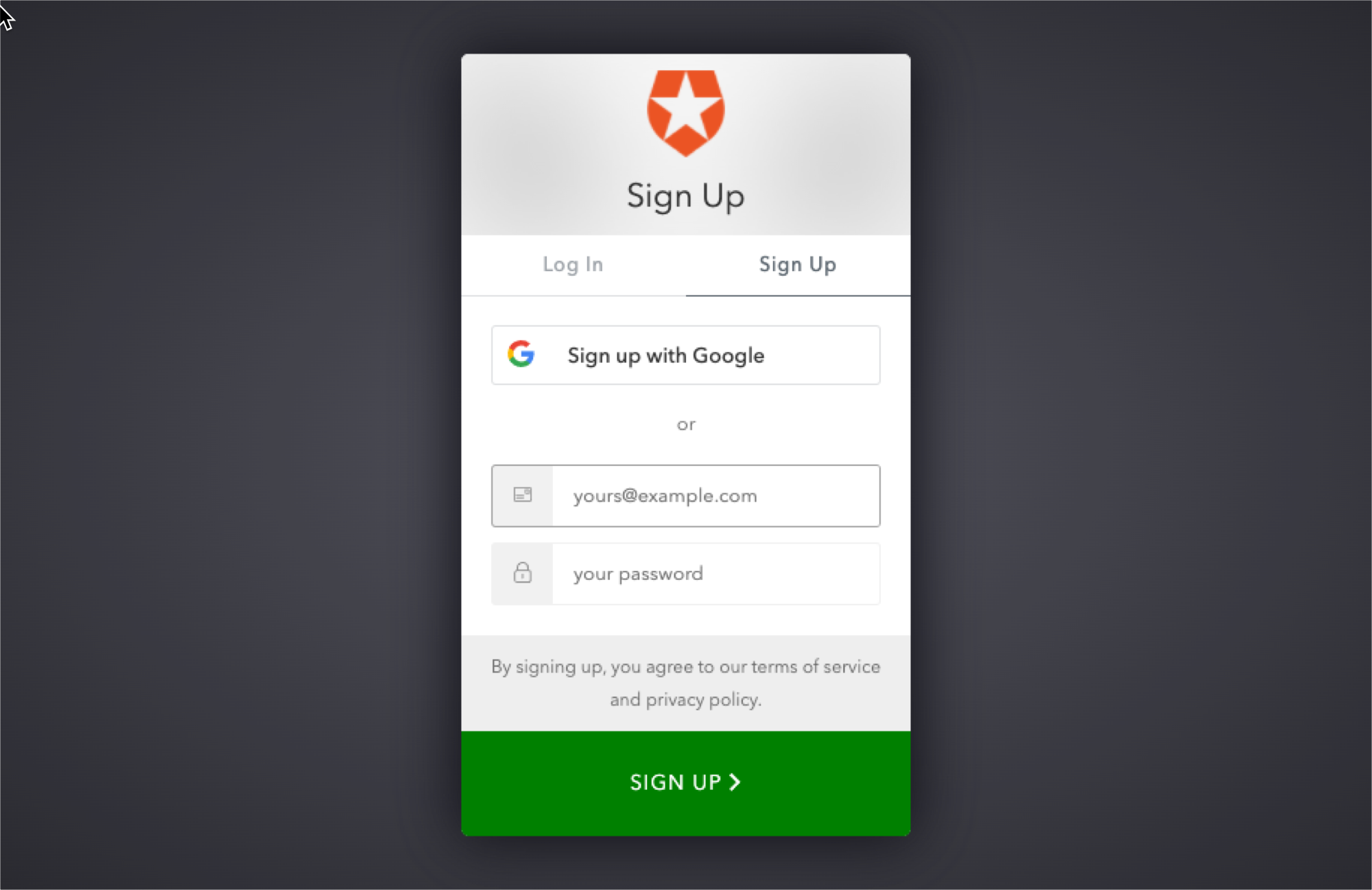
      You can then call the `LoginAsync` method to log the user in:

      ```cs lines
      var loginResult = await client.LoginAsync();
      ```

      <Frame>
        <img src="https://cdn2.auth0.com/docs/1.14546.0/media/articles/native-platforms/windows-uwp-csharp/universal-login.png" />
      </Frame>

      This loads the Auth0 login page into a web view. You can learn how to customize the login page at [this document](/docs/universal-login#simple-customization).
    </Section>

    <Section id={sections[4].id} title={sections[4].title} stepNumber="5">
      The returned login result indicates whether authentication was successful, and if so contains the tokens and
      claims of the user.

      ### Authentication Error

      You can check the `IsError` property of the result to see whether the login has failed. The
      `ErrorMessage` contains more information regarding the error which occurred.

      ```cs lines
      if (loginResult.IsError)
      {
          Debug.WriteLine($"An error occurred during login: {loginResult.Error}")
      }
      ```

      ### Accessing the tokens

      On successful login, the login result contains the ID Token and Access Token in the `IdentityToken`
      and `AccessToken` properties respectively.

      ```cs lines
      if (!loginResult.IsError)
      {
          Debug.WriteLine($"id_token: {loginResult.IdentityToken}");
          Debug.WriteLine($"access_token: {loginResult.AccessToken}");
      }
      ```

      ### Obtaining the User Information

      On successful login, the login result contains the user information in the `User` property, which is a
      [ClaimsPrincipal](https://msdn.microsoft.com/en-us/library/system.security.claims.claimsprincipal\(v=vs.110\).aspx).

      To obtain information about the user, you can query the claims. You can for example obtain the user's name and
      email address from the `name` and `email` claims:

      ```cs lines
      if (!loginResult.IsError)
      {
          Debug.WriteLine($"name: {loginResult.User.FindFirst(c => c.Type == "name")?.Value}");
          Debug.WriteLine($"email: {loginResult.User.FindFirst(c => c.Type == "email")?.Value}");
      }
      ```

      <Info>
        The exact claims returned depends on the scopes that were requested. For more information see @scopes.
      </Info>

      You can obtain a list of all the claims contained in the ID Token by iterating through the `Claims`
      collection:

      ```cs lines
      if (!loginResult.IsError)
      {
          foreach (var claim in loginResult.User.Claims)
          {
              Debug.WriteLine($"{claim.Type} = {claim.Value}");
          }
      }
      ```
    </Section>

    <Section id={sections[5].id} title={sections[5].title} stepNumber="6">
      To log the user out call the `LogoutAsync` method.

      ```cs lines
      await client.LogoutAsync();
      ```
    </Section>

    ## Next Steps

    Excellent work! If you made it this far, you should now have login, logout, and user profile information running in your application.

    This concludes our quickstart tutorial, but there is so much more to explore. To learn more about what you can do with Auth0, check out:

    * [Auth0 Dashboard](https://manage.auth0.com/dashboard/us/dev-gja8kxz4ndtex3rq) - Learn how to configure and manage your Auth0 tenant and applications
    * [auth0-oidc-client-net SDK](https://github.com/auth0/auth0-oidc-client-net) - Explore the SDK used in this tutorial more fully
    * [Auth0 Marketplace](https://marketplace.auth0.com/) - Discover integrations you can enable to extend Auth0’s functionality
  </Content>

  <SideMenu sections={sections}>
    <SideMenuSectionItem id={sections[0].id}>
      <SignUpForm />
    </SideMenuSectionItem>

    <SideMenuSectionItem id={sections[1].id}>
      <SignUpForm />
    </SideMenuSectionItem>

    <SideMenuSectionItem id={sections[2].id}>
      <SignUpForm />
    </SideMenuSectionItem>

    <SideMenuSectionItem id={sections[3].id}>
      ```cs MainPage.xaml.cs lines 
      // MainPage.xaml.cs

      using Auth0.OidcClient;

      var client = new Auth0Client(new Auth0ClientOptions
      {
          Domain = "dev-gja8kxz4ndtex3rq.us.auth0.com",
          ClientId = "mz9iNEIo2PHu7oeh8QRt19ndTyyCIgai"
      });
      ```
    </SideMenuSectionItem>

    <SideMenuSectionItem id={sections[4].id}>
      <SignUpForm />
    </SideMenuSectionItem>

    <SideMenuSectionItem id={sections[5].id}>
      <SignUpForm />
    </SideMenuSectionItem>
  </SideMenu>
</Recipe>