> ## Documentation Index
> Fetch the complete documentation index at: https://docs-staging-quickstart-revamp.mintlify.site/llms.txt
> Use this file to discover all available pages before exploring further.
> How to use Auth0 Login Flow with your Organization
# Login Flows for Organizations
[Auth0 Organizations](/docs/manage-users/organizations) allows leaders of B2B products or SaaS applications to build multi-tenant architectures, store identification tokens appropriately, and minimize end user login friction.
#### Configure the login experience of your application
Your application can be configured in the **Login Experience** tab to support three user types:
1. Individuals
2. Business Users
3. Both
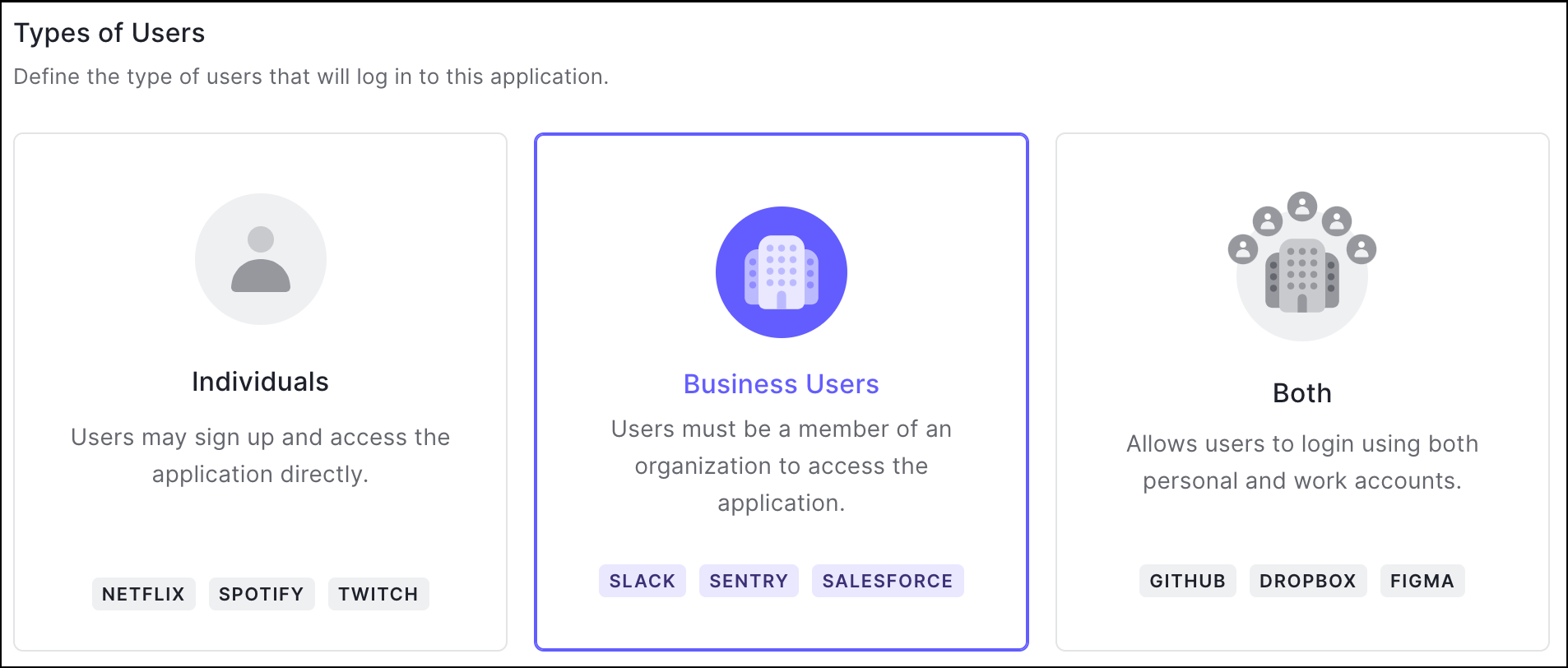 Applications designed explicitly for consumers - for example, Netflix or Spotify - likely do not need Organization management. By choosing **Individuals**, users log in to the application directly and Organization context is not provided.
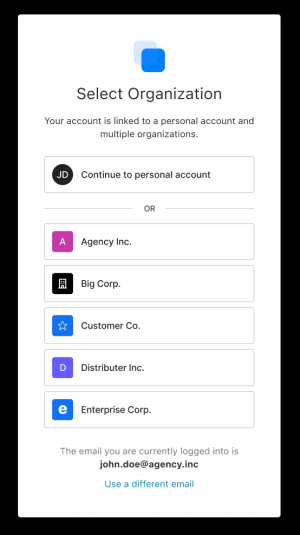
B2B or SaaS applications - for example, Slack or Jira - are better-served by **Business Users,** so end users can only access your application in the context of an Auth0 Organization. Users in multiple Organizations are directed to the Organization Picker after the login flow, which displays the first 20 organizations they joined.
Applications designed explicitly for consumers - for example, Netflix or Spotify - likely do not need Organization management. By choosing **Individuals**, users log in to the application directly and Organization context is not provided.
B2B or SaaS applications - for example, Slack or Jira - are better-served by **Business Users,** so end users can only access your application in the context of an Auth0 Organization. Users in multiple Organizations are directed to the Organization Picker after the login flow, which displays the first 20 organizations they joined.
 Choose **Both** if your end user may maintain both a personal and business account with your application. For example, Github often stores both personal and professional code repositories.
You can configure your application's user type through the Auth0 Dashboard (as described above) or the Management API. Specifically, use the `organization_usage` parameter of the [Update a client](https://auth0.com/docs/api/management/v2/clients/patch-clients-by-id) endpoint to set the appropriate type of user. For more information on both methods, review [Define Organization Behavior](/docs/manage-users/organizations/configure-organizations/define-organization-behavior).
#### Configure the Login Flow for your Application
After selecting **Business Users** or **Both**, you can further customize the experience that your users have when logging into your application.
Choose **Both** if your end user may maintain both a personal and business account with your application. For example, Github often stores both personal and professional code repositories.
You can configure your application's user type through the Auth0 Dashboard (as described above) or the Management API. Specifically, use the `organization_usage` parameter of the [Update a client](https://auth0.com/docs/api/management/v2/clients/patch-clients-by-id) endpoint to set the appropriate type of user. For more information on both methods, review [Define Organization Behavior](/docs/manage-users/organizations/configure-organizations/define-organization-behavior).
#### Configure the Login Flow for your Application
After selecting **Business Users** or **Both**, you can further customize the experience that your users have when logging into your application.
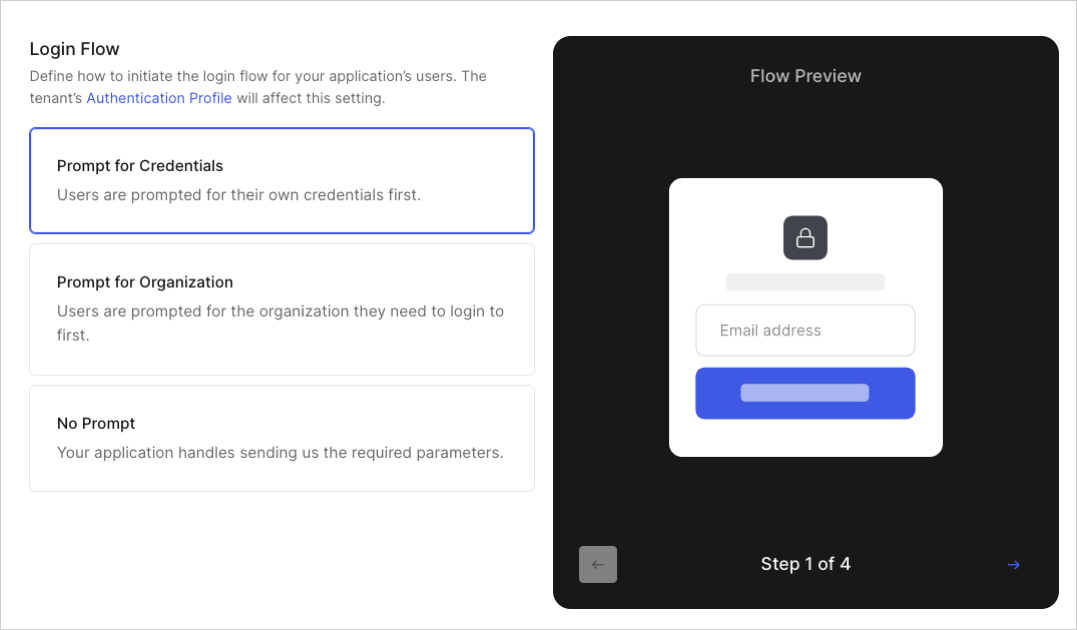 Most organizations should choose **Prompt for Credentials**, then enable [Identifier First Authentication](/docs/authenticate/login/auth0-universal-login/identifier-first). If you already know the Organization with which a user is attempting to log in, the **No Prompt** option along with [Custom Development with Organizations](/docs/manage-users/organizations/custom-development) allows your app to maintain a branded and customized login flow. Administrators can further curate the end user experience by enabling the **Prompt for Organization** toggle, which requires users to identify the Organization they’re logging into.
**Note**: Even when selecting Prompt for Credentials, you can still direct users to [log in with a specific organization’s login prompt](/docs/manage-users/organizations/custom-development#i-want-users-to-log-in-to-a-specified-organization) as needed.
You can configure the login flow for your application through the Auth0 Dashboard (as described above) or the Management API. Specifically, use the `organization_require_behavior` parameter of the [Update a client](https://auth0.com/docs/api/management/v2/clients/patch-clients-by-id) endpoint to set the appropriate flow. For more information on both methods, review [Define Organization Behavior](/docs/manage-users/organizations/configure-organizations/define-organization-behavior).
##### Identifier First Authentication
If your enterprise application uses [Enterprise Federation](/docs/authenticate/enterprise-connections), you can activate [Identifier First Authentication with Home Realm Discovery](/docs/authenticate/login/auth0-universal-login/identifier-first) in its Authentication Profile. Once enabled, Home Realm Discovery detects email addresses from a known domain and automatically sends them to the proper Workforce login.
Most organizations should choose **Prompt for Credentials**, then enable [Identifier First Authentication](/docs/authenticate/login/auth0-universal-login/identifier-first). If you already know the Organization with which a user is attempting to log in, the **No Prompt** option along with [Custom Development with Organizations](/docs/manage-users/organizations/custom-development) allows your app to maintain a branded and customized login flow. Administrators can further curate the end user experience by enabling the **Prompt for Organization** toggle, which requires users to identify the Organization they’re logging into.
**Note**: Even when selecting Prompt for Credentials, you can still direct users to [log in with a specific organization’s login prompt](/docs/manage-users/organizations/custom-development#i-want-users-to-log-in-to-a-specified-organization) as needed.
You can configure the login flow for your application through the Auth0 Dashboard (as described above) or the Management API. Specifically, use the `organization_require_behavior` parameter of the [Update a client](https://auth0.com/docs/api/management/v2/clients/patch-clients-by-id) endpoint to set the appropriate flow. For more information on both methods, review [Define Organization Behavior](/docs/manage-users/organizations/configure-organizations/define-organization-behavior).
##### Identifier First Authentication
If your enterprise application uses [Enterprise Federation](/docs/authenticate/enterprise-connections), you can activate [Identifier First Authentication with Home Realm Discovery](/docs/authenticate/login/auth0-universal-login/identifier-first) in its Authentication Profile. Once enabled, Home Realm Discovery detects email addresses from a known domain and automatically sends them to the proper Workforce login.
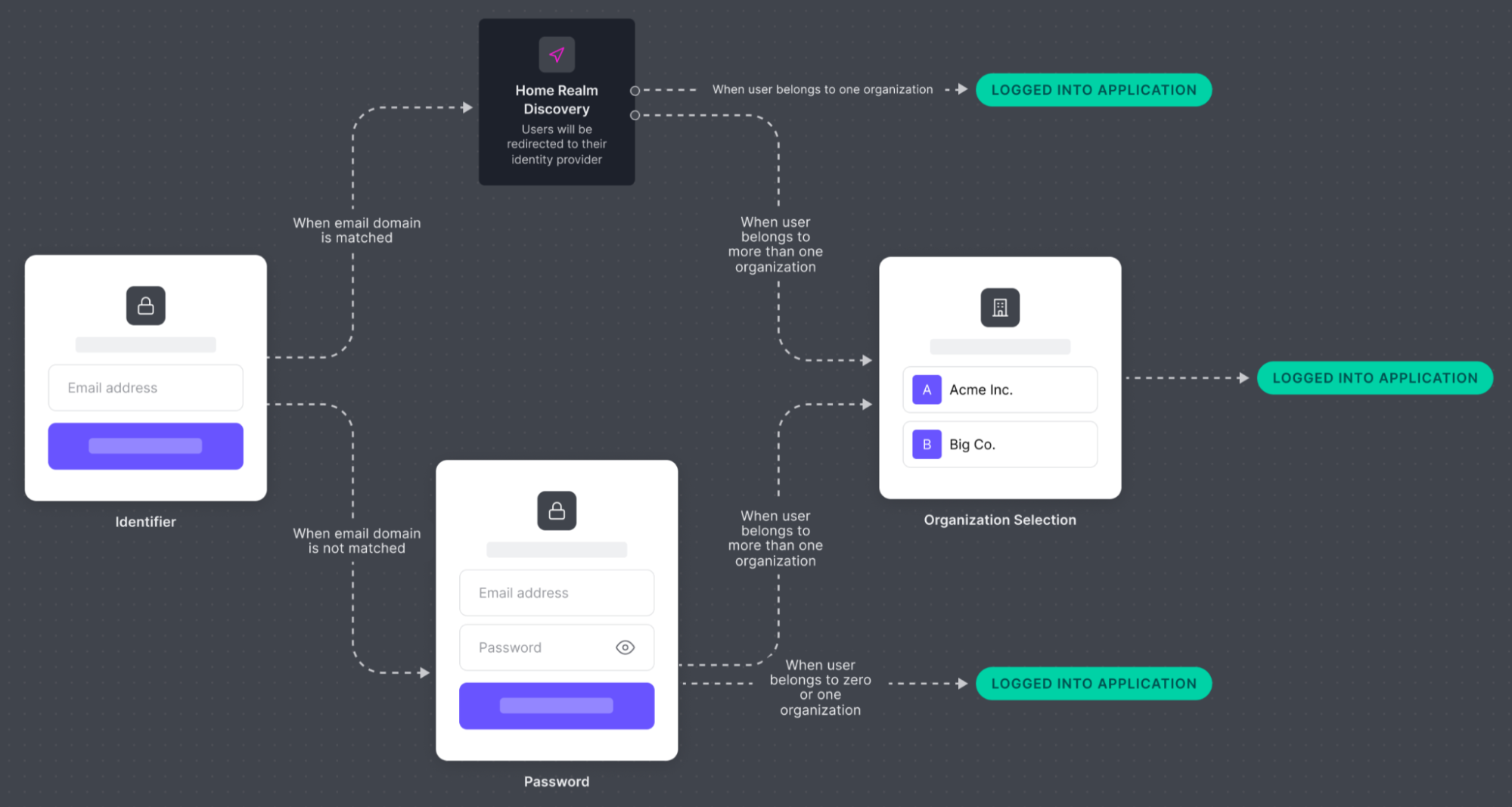 In this flow, exactly one Auth0 [Database Connection](/docs/authenticate/database-connections/custom-db) can be used as a fallback when a user’s email domain does not match the identity provider (IdP) domain of any enterprise connections. Users are shown your application’s login prompt instead of an organization’s login prompt, and [Connections that are enabled for the Application](/docs/get-started/applications/update-application-connections) are visible to the user.
After a user provides an email address, Auth0 matches it with Enterprise Connections enabled for this application **and** all Enterprise Connections enabled for Organizations. If a match is found, the user is directed to authenticate with the associated IdP. If no match is found, a password field is displayed.
There are use cases - such as multiple database configurations assigned to different Organizations - in which Auth0 cannot determine which IdP an user’s email is associated with. In these cases, select Prompt for Organization as your login initiation prompt or send the `organization` parameter to Auth0.
You can use the Management API to configure Identifier First Authentication. Specifically, use the `identifier_first` parameter of the [Update prompts settings](https://auth0.com/docs/api/management/v2/prompts/patch-prompts) endpoint.
##### Auto-Membership
Instead of inviting or assigning users to an Organization directly, you may want to allow any user that is able to authenticate with a federated IdP to be granted access to an Organization. For these scenarios, Auth0 recommends the [Auto-Membership](/docs/manage-users/organizations/configure-organizations/grant-just-in-time-membership) setting.
Auto-membership is typically triggered by [directing a user to log in using the Organization’s login prompt](/docs/manage-users/organizations/custom-development), which can pass the connection and organization parameters on the user’s behalf. If a user’s desired organization cannot be determined prior to login, the Prompt for Credentials flow grants membership to the sole organization with auto-membership configured.
However, there may be scenarios in which you cannot determine a user’s desired organization prior to sending them to log in. In this case, you can use the aforementioned Prompt for Credentials flow but note that the user will only be granted membership in the organization if one and only one organization has this connection set as an enabled connection for the organization with auto-membership activated.
You can use the Management API to configure auto-membership. Specifically, use the `assign_membership_on_login` parameter of the [Modify an organization's connection](https://auth0.com/docs/api/management/v2/organizations/patch-enabled-connections-by-connection-id) endpoint.
In this flow, exactly one Auth0 [Database Connection](/docs/authenticate/database-connections/custom-db) can be used as a fallback when a user’s email domain does not match the identity provider (IdP) domain of any enterprise connections. Users are shown your application’s login prompt instead of an organization’s login prompt, and [Connections that are enabled for the Application](/docs/get-started/applications/update-application-connections) are visible to the user.
After a user provides an email address, Auth0 matches it with Enterprise Connections enabled for this application **and** all Enterprise Connections enabled for Organizations. If a match is found, the user is directed to authenticate with the associated IdP. If no match is found, a password field is displayed.
There are use cases - such as multiple database configurations assigned to different Organizations - in which Auth0 cannot determine which IdP an user’s email is associated with. In these cases, select Prompt for Organization as your login initiation prompt or send the `organization` parameter to Auth0.
You can use the Management API to configure Identifier First Authentication. Specifically, use the `identifier_first` parameter of the [Update prompts settings](https://auth0.com/docs/api/management/v2/prompts/patch-prompts) endpoint.
##### Auto-Membership
Instead of inviting or assigning users to an Organization directly, you may want to allow any user that is able to authenticate with a federated IdP to be granted access to an Organization. For these scenarios, Auth0 recommends the [Auto-Membership](/docs/manage-users/organizations/configure-organizations/grant-just-in-time-membership) setting.
Auto-membership is typically triggered by [directing a user to log in using the Organization’s login prompt](/docs/manage-users/organizations/custom-development), which can pass the connection and organization parameters on the user’s behalf. If a user’s desired organization cannot be determined prior to login, the Prompt for Credentials flow grants membership to the sole organization with auto-membership configured.
However, there may be scenarios in which you cannot determine a user’s desired organization prior to sending them to log in. In this case, you can use the aforementioned Prompt for Credentials flow but note that the user will only be granted membership in the organization if one and only one organization has this connection set as an enabled connection for the organization with auto-membership activated.
You can use the Management API to configure auto-membership. Specifically, use the `assign_membership_on_login` parameter of the [Modify an organization's connection](https://auth0.com/docs/api/management/v2/organizations/patch-enabled-connections-by-connection-id) endpoint.