> ## Documentation Index
> Fetch the complete documentation index at: https://docs-staging-quickstart-revamp.mintlify.site/llms.txt
> Use this file to discover all available pages before exploring further.
> Manage and configure members of your team.
# Team Member Management
Team Owners can manage and configure Auth0 Teams. Auth0 creates at least one Owner when we provision Teams. We recommend at least two Team Owners, especially if you limit tenant creation to Team Owners.
**Self-Service Customers**
When Auth0 provisions a Team, we may automatically assign the **Team Owner** role to the administrator user account . However, this user must manually assign themselves the **Team Owner** role in order to verify their email and receive full account permissions. This user can then invite additional members as needed.
As a Team Owner, you can add, change, and remove team members. The supported roles apart from a Team Owner are Report Viewer and Contributor.
## Team membership roles
### Team Owner
Members with this role have full access to the team dashboard (list of all tenants, tenant creation restriction, team members management) and can access specific tenants of which they are a member.
### Report Viewer
Members with this role can view Quarterly Snapshots. The Report Viewer role is available to select enterprise customers that are managed by the Digital Technical Account Manager (DTAM).
### Contributor
Members with this role can view and access specific tenants of which they are a member.
## View and add team members
### Invite a new team member
1. On the left side of the Teams Dashboard, select **Members**.
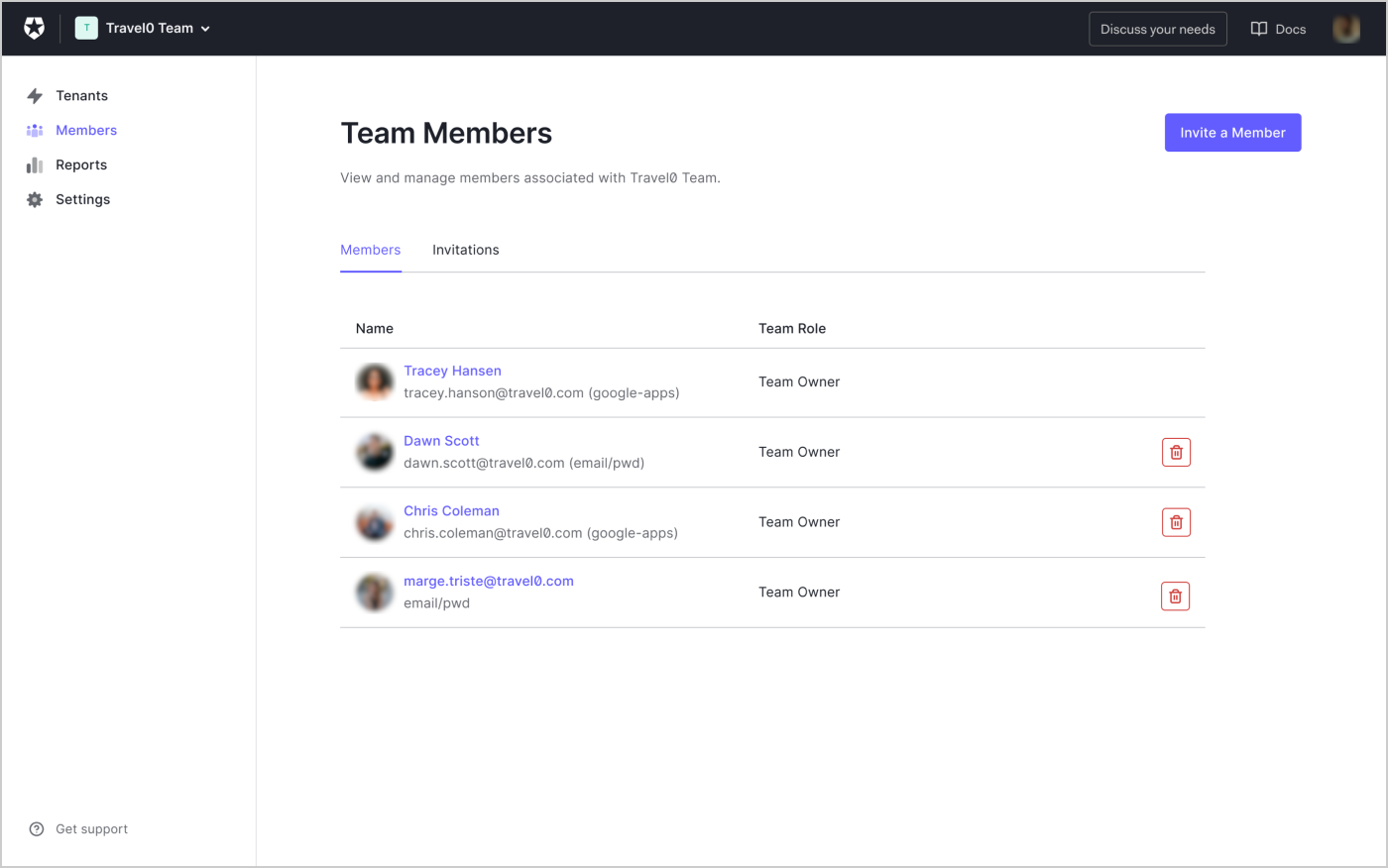 2. To invite a new Team Owner, select **Invite a Member**.
3. Enter the email address of the member to invite and select the access level.
2. To invite a new Team Owner, select **Invite a Member**.
3. Enter the email address of the member to invite and select the access level.
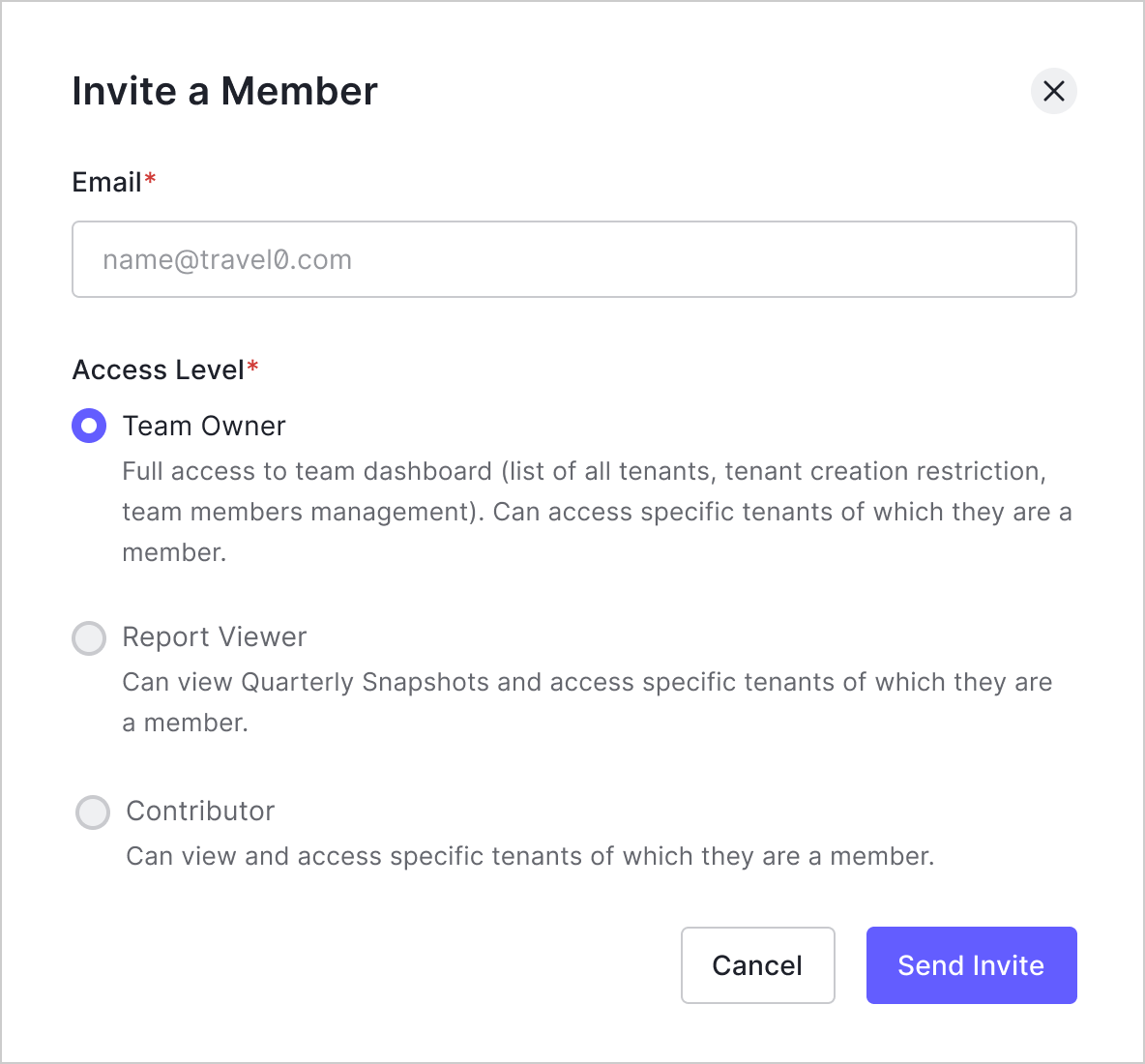 4. Select **Send Invite**.
### Update existing team member role
1. To update the role of an existing Team Member, search for the member in the **Members** list.
2. Select the three-dot menu option and click on the **Assign Role** option.
3. Pick the new role you want to assign the Team Member and click **Assign**.
### Delete an existing team member
If a team member no longer requires access to the team, they can simultaneously be removed from the Teams Dashboard and all team tenants in which they are a user.
This feature requires tenant member management. Public Cloud Enterprise customers must activate this feature manually on the Teams settings page.
To delete an existing Team Member:
1. Navigate to the **Members** section on the left side of the Teams Dashboard, then locate the team member.
2. Select the ellipsis to reveal more options and choose **Remove Member**.
3. After you confirm the removal, you will be presented with a toast notification confirming the successful deletion of the team member.
If you only want to remove the team member's access to one or more tenants, go to the [Team Member's details page](/docs/get-started/auth0-teams/tenant-member-management).
## Update team name
Teams allow you to update the Team name visible on the tenant picker for dashboard users. To update the Team name:
1. Select **Settings** on the left side of the Teams Dashboard.
2. Make the necessary changes to the **Team Name** captured within the **Team Information** section.
3. Select **Save**. This change now displays in the tenant picker.
4. Select **Send Invite**.
### Update existing team member role
1. To update the role of an existing Team Member, search for the member in the **Members** list.
2. Select the three-dot menu option and click on the **Assign Role** option.
3. Pick the new role you want to assign the Team Member and click **Assign**.
### Delete an existing team member
If a team member no longer requires access to the team, they can simultaneously be removed from the Teams Dashboard and all team tenants in which they are a user.
This feature requires tenant member management. Public Cloud Enterprise customers must activate this feature manually on the Teams settings page.
To delete an existing Team Member:
1. Navigate to the **Members** section on the left side of the Teams Dashboard, then locate the team member.
2. Select the ellipsis to reveal more options and choose **Remove Member**.
3. After you confirm the removal, you will be presented with a toast notification confirming the successful deletion of the team member.
If you only want to remove the team member's access to one or more tenants, go to the [Team Member's details page](/docs/get-started/auth0-teams/tenant-member-management).
## Update team name
Teams allow you to update the Team name visible on the tenant picker for dashboard users. To update the Team name:
1. Select **Settings** on the left side of the Teams Dashboard.
2. Make the necessary changes to the **Team Name** captured within the **Team Information** section.
3. Select **Save**. This change now displays in the tenant picker.