> ## Documentation Index
> Fetch the complete documentation index at: https://docs-staging-quickstart-revamp.mintlify.site/llms.txt
> Use this file to discover all available pages before exploring further.
> Learn about implementing passkeys as an authentication method
# Passkeys
Passkeys are a phishing-resistant alternative to traditional authentication factors (such as identifier/password) that offer an easier and more secure login experience to users. Passkeys are modeled from FIDO® W3C Web Authentication (WebAuthn) and Client to Authenticator Protocol (CTAP) [specifications](https://fidoalliance.org/specs/fido-v2.1-ps-20210615/fido-client-to-authenticator-protocol-v2.1-ps-errata-20220621.html#intro)).
Passkeys reduce the friction experienced with single-device authentication methods by allowing credentials to sync across devices. Cross-device authentication eliminates the need for users to re-enroll on each of their devices. It also supports a more reliable recovery method as the stored credentials can survive the loss of an originating device. To learn more about passkeys, review the FIDO® Alliance [Passkey FAQs](https://fidoalliance.org/passkeys/#faq).
Auth0 supports passkeys as an authentication method for [database connections](/docs/authenticate/database-connections).
## User experience flows
Similar to traditional authentication factors, passkeys can support several user experience flows such as signup, login, and account recovery.
Auth0 Universal Login currently supports the signup and login user experience flows for passkeys.
### Signup flow
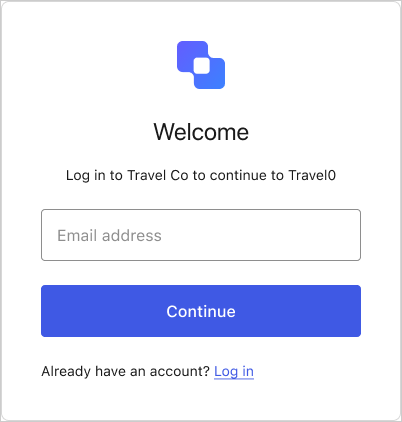
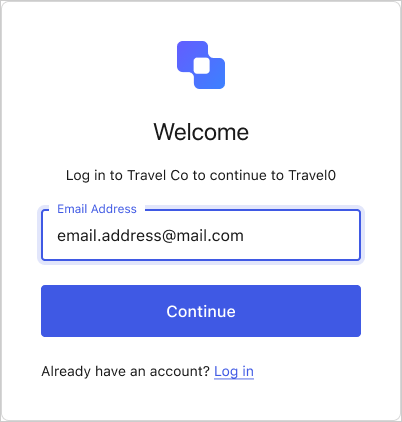
The signup flow requires the user to provide an email address, and then create a passkey on either their current device or another device through cross-device authentication.
1. Prompts the user to enter their email address.
 2. User enters their email address.
 3. Prompts the user to create a passkey.
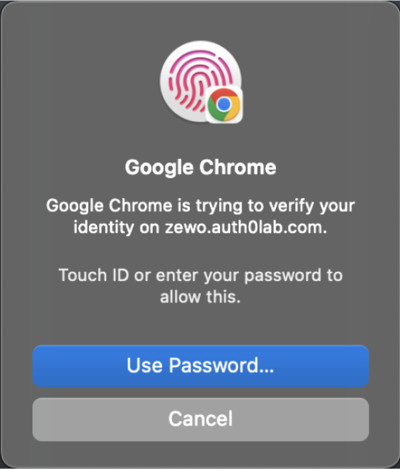
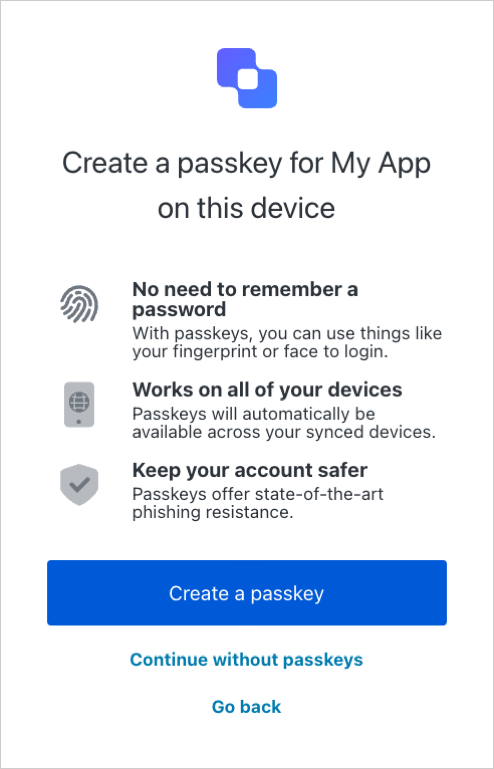 4. If the user selects **Create a passkey**, it triggers the browser (or operating system) flow to create a passkey.
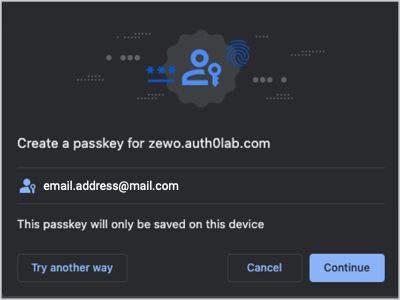 * If the user selects **Continue**, it prompts them to authenticate with their device’s credentials.
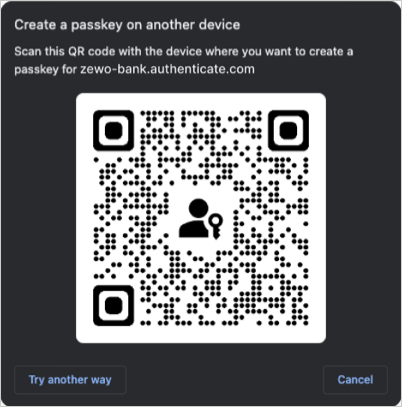
 * If the user selects **Try another way**, it prompts them to create a passkey on another device.
 ### Login flow
The login flow detects if the user has a passkey registered to the current device and then automatically selects it using autofill. If the user has multiple passkeys registered to the device, they can manually select one with a button.
1. Prompts the user for an email address or a passkey.
### Login flow
The login flow detects if the user has a passkey registered to the current device and then automatically selects it using autofill. If the user has multiple passkeys registered to the device, they can manually select one with a button.
1. Prompts the user for an email address or a passkey.
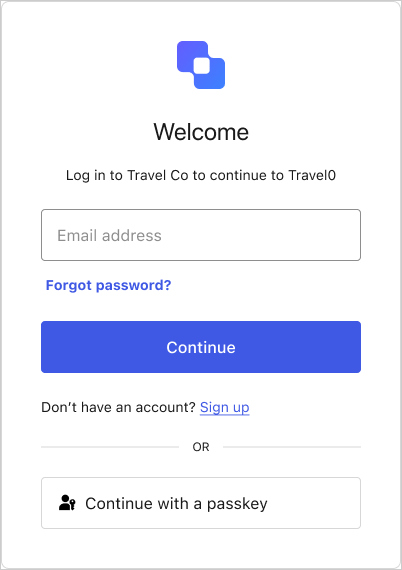 2. User can use autofill or select **Continue with a passkey**.
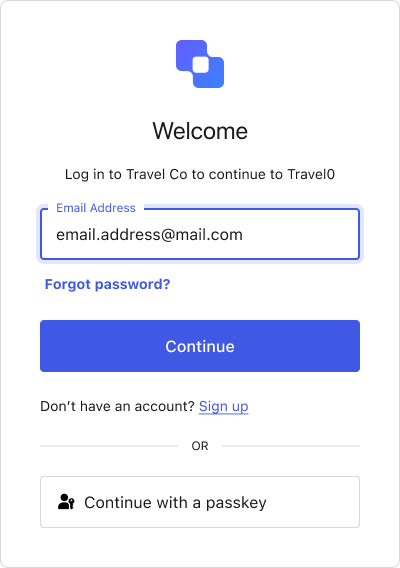
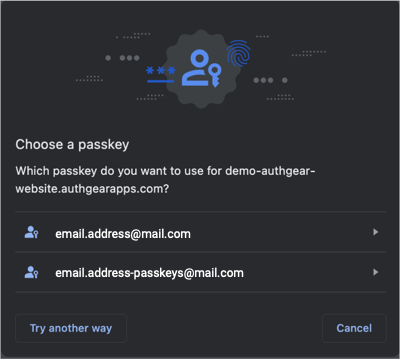 3. Prompts the user to authenticate with the device’s credentials.
## Account reset
If the user needs to reset their account, they can [trigger an interactive password reset flow](/docs/authenticate/database-connections/password-change#universal-login-page) through Universal Login.
Passkeys are implemented on the Database (Identifier/Password) connection to guarantee another factor for recovery purposes and to facilitate migration of users from passwords to passkeys.
## Passkeys with MFA enabled
If MFA is enabled, the user may be prompted to complete an MFA challenge after authenticating with a passkey based on settings and risk assessment.
The default behavior is to require the completion of an MFA challenge regardless if the authentication method used was a password or a passkey. Given the high level of security passkeys provide, you may skip MFA for users that have authenticated with a passkey in order to reduce friction. This can be achieved by using a post-login Action.
To learn more, read [Reduce friction with passkeys](/docs/customize/actions/explore-triggers/signup-and-login-triggers/login-trigger#reduce-friction-with-passkeys) and [Multi-Factor Authentication](/docs/secure/multi-factor-authentication).
FIDO® is a trademark (registered in numerous countries) of [FIDO Alliance, Inc](https://fidoalliance.org/).
3. Prompts the user to authenticate with the device’s credentials.
## Account reset
If the user needs to reset their account, they can [trigger an interactive password reset flow](/docs/authenticate/database-connections/password-change#universal-login-page) through Universal Login.
Passkeys are implemented on the Database (Identifier/Password) connection to guarantee another factor for recovery purposes and to facilitate migration of users from passwords to passkeys.
## Passkeys with MFA enabled
If MFA is enabled, the user may be prompted to complete an MFA challenge after authenticating with a passkey based on settings and risk assessment.
The default behavior is to require the completion of an MFA challenge regardless if the authentication method used was a password or a passkey. Given the high level of security passkeys provide, you may skip MFA for users that have authenticated with a passkey in order to reduce friction. This can be achieved by using a post-login Action.
To learn more, read [Reduce friction with passkeys](/docs/customize/actions/explore-triggers/signup-and-login-triggers/login-trigger#reduce-friction-with-passkeys) and [Multi-Factor Authentication](/docs/secure/multi-factor-authentication).
FIDO® is a trademark (registered in numerous countries) of [FIDO Alliance, Inc](https://fidoalliance.org/).